How to manage your workspace settings
Change your workspace logo, name and URL, and copy the workspace ID for the API.
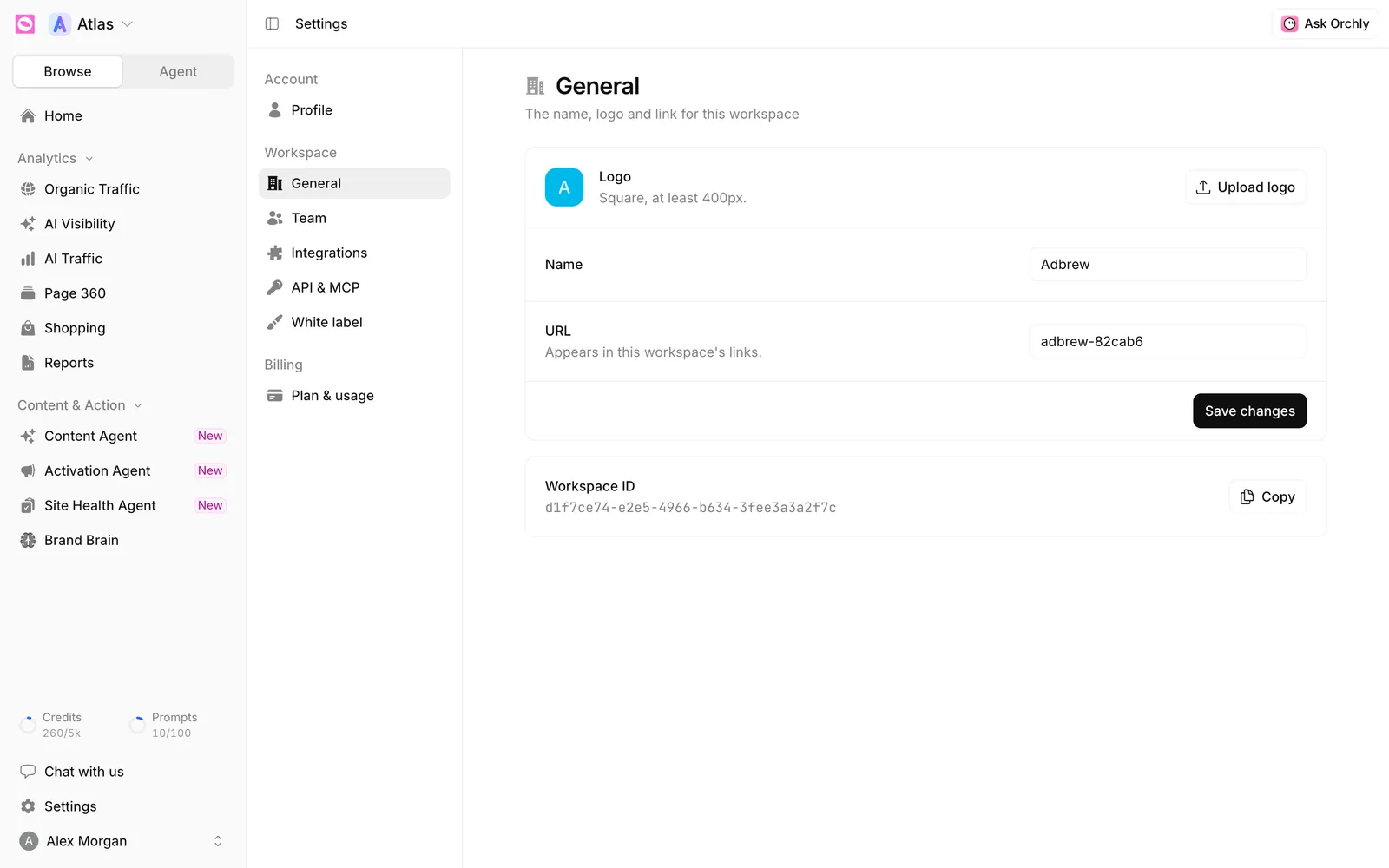
Workspace settings hold the name, logo and link for one workspace. Open Settings at the bottom of the sidebar, then General under Workspace. Change what you need and click Save changes.
A workspace is one brand or one client. Its AI visibility prompts, integrations, agents, Brand Brain and reports all live inside it, so it helps when the name and logo make it obvious which one you’re in.
What can I change in workspace settings?
| Setting | What it does |
|---|---|
| Logo | The workspace’s image in the switcher and around the app. Click Upload logo. Use a square image, at least 400px, under 5MB |
| Name | What the workspace is called. Agencies usually use the client’s name |
| URL | The short name that appears in this workspace’s links, like your-company |
| Workspace ID | A fixed ID you can’t edit. Click Copy when support or an integration asks for it |
The logo uploads as soon as you pick the file. Name and URL changes save when you click Save changes.
Is the URL field my company website?
No. URL is the workspace’s own link slug, the part of Orchly’s address that identifies this workspace. It doesn’t change the website Orchly tracks.
Your company website lives in Brand Brain. Open Brand Brain, then Company, and click Edit profile to change it. See how to set up Brand Brain.
Bookmarks and shared links that use the old workspace URL may stop working. Tell your team before you change it. Shared report links use their own address, so they aren’t affected by this setting.
How do I add another workspace?
Open the workspace switcher at the top of the sidebar and choose Create workspace. How many websites you can have depends on your plan, counted across your whole organization. If you need more, add them from Plan & usage without changing plan.
Keep each brand or client in its own workspace. Their prompts, competitors and agents stay separate, and you can give a client access to only their own workspace from Team.
Workspace, profile or team?
Three settings pages that are easy to mix up:
- General is this workspace: name, logo, URL.
- Profile is just you: your name and sign-in email.
- Team is who can open which workspaces, and their role.
Integrations like Search Console and your CMS are set per workspace too. See the integrations overview.