How to connect WordPress to Orchly
Install the Orchly plugin and paste a connection key so agents can publish posts, apply SEO fixes and Orchly can track AI traffic.
To connect WordPress to Orchly, install the Orchly AI plugin, generate a connection key in Settings → Integrations → WordPress, and paste that key into the plugin. One connection covers publishing, SEO fixes and AI traffic tracking.
The plugin is the only way to connect WordPress. The old application-password method is gone, so if you connected that way before, switch to the plugin.
A WordPress admin account (you need to be able to install plugins), WordPress 5.9 or later, and PHP 7.4 or later. The current plugin version is 4.0.3.
How do I connect WordPress with the Orchly plugin?
In Orchly:
- Go to Settings → Integrations and click Configure on WordPress.
- Under Install the plugin, click Download plugin to get the ZIP.
- Under Connect your site, click Generate key.
- Copy the key. It starts with
orchly_wp_and is shown only once, so copy it now.
In WordPress:
- Go to Plugins → Add New → Upload Plugin, choose the ZIP, install it and click Activate.
- Open Orchly AI in the admin menu.
- Paste the key into the Connection key field and click Connect.
Back in Orchly, the drawer shows Waiting for WordPress to connect and checks every few seconds. When the plugin checks in, you’ll see “WordPress connected” and the badge turns to Connected.
Keys aren’t shown again after you leave the drawer. Click Rotate key to get a new one. The old key stops working right away.
What can Orchly do on a WordPress site?
Once connected, the drawer lists what the plugin allows under What Orchly can do:
- Create and update content: new posts and pages, and refreshes of existing ones.
- Publish live: publish instead of saving drafts.
- SEO tags: titles, meta descriptions, canonicals, social tags and schema, written through your SEO plugin (Yoast, Rank Math and others) so pages never get duplicate tags.
- robots.txt and Redirects.
- Undo changes: every change can be rolled back.
This is what lets agents publish articles and lets the Site Health Agent fix issues directly on your site. See publishing agent output.
Control what Orchly may change from WordPress
In WordPress, open Orchly AI → Settings. Under What Orchly may change, switch off anything you don’t want, such as Publish live. With Publish live off, Orchly only saves drafts for you to review. Anything switched off is refused on the site, whatever gets approved in Orchly.
The plugin also has Changes and Redirects tabs, where you can see and undo what Orchly did.
Does the plugin track AI traffic?
Yes. The same plugin records AI crawler visits and visits from AI assistants like ChatGPT and Perplexity, and sends them to AI traffic analytics. There’s nothing extra to set up. The plugin’s Overview tab in WordPress also shows recent AI traffic and cards for Content published and Content updated in the last 30 days.
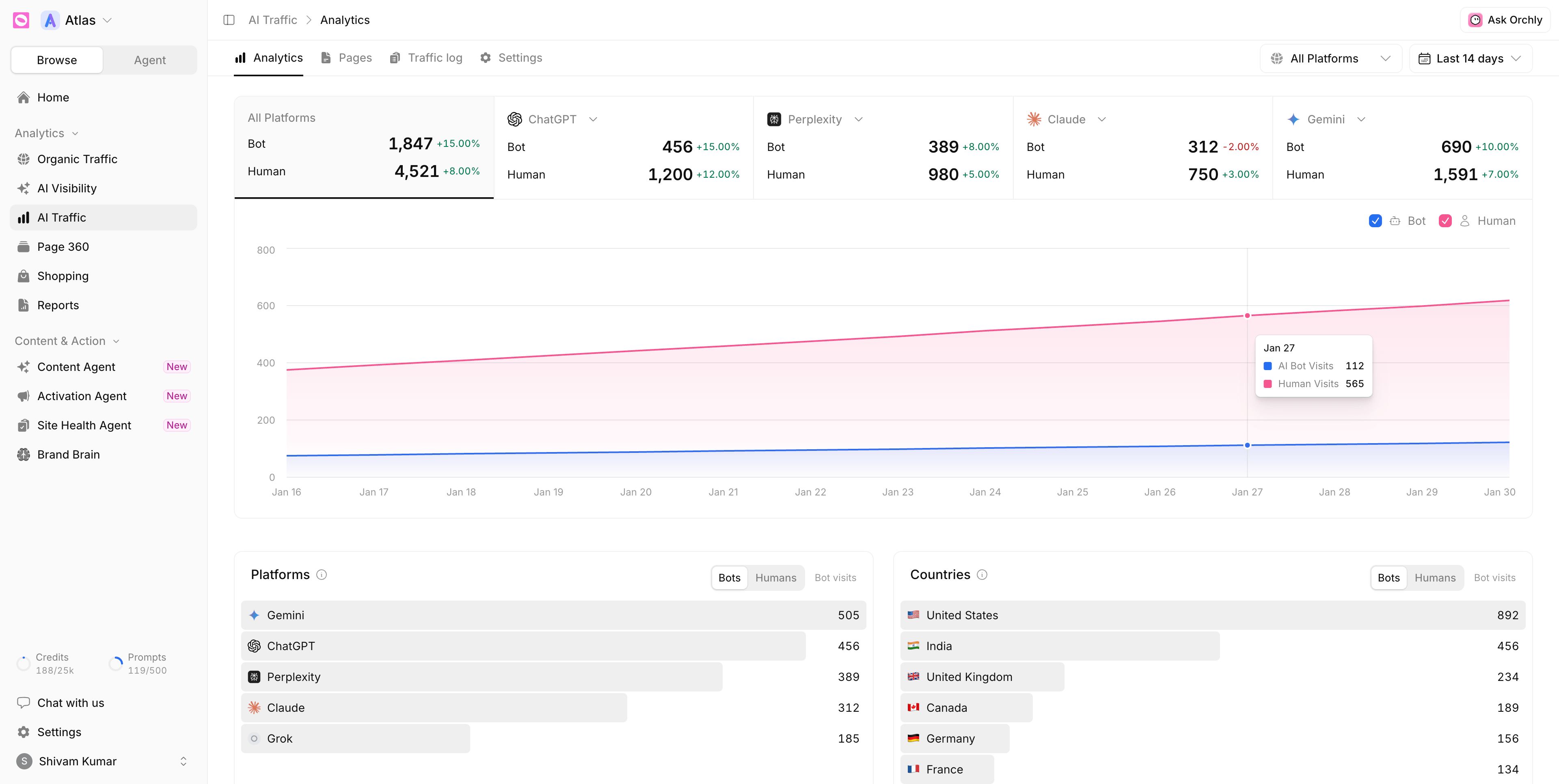
If a caching plugin serves pages without running WordPress, AI crawler visits to cached pages aren’t counted. Visits from AI assistants still are. The drawer warns you when it spots a caching plugin.
How do I update, rotate or disconnect?
Open the WordPress drawer in Settings → Integrations.
- Update the plugin. If the badge says Update plugin, click Download latest plugin, then upload it in WordPress under Plugins → Add New → Upload Plugin. It replaces the old version.
- Rotate key. Use this if the key was shared or leaked, then paste the new key into the plugin.
- Refresh re-checks the connection.
- Disconnect. Publishing, fixes and tracking stop. Changes already made on the site stay.
Troubleshooting
| What you see | What to do |
|---|---|
| Waiting badge | The key was generated but the plugin never used it. Paste it in Orchly AI in WordPress, or rotate it if you lost it. |
| ”Orchly cannot reach your site” | A security plugin or firewall blocking /wp-json/ is the usual cause. Allow requests to that path. |
| ”That is not an Orchly WordPress key” in WordPress | You pasted something else. Copy the key that starts with orchly_wp_. |
| A staging copy says the key belongs to another address | Generate a separate key for the staging site. |
| SEO tags not listed as available | Your SEO plugin isn’t supported. The drawer names it. |
If you publish to a custom post type or custom fields, open Content mappings in the drawer and click Map a collection to choose what fills each field.