How to see which pages AI crawlers visit
Use the Pages tab and Traffic log to see every AI bot hit and referral visit, by path, platform, bot type and status.
To see which pages AI crawlers visit, check the AI traffic logs. They tell you exactly which AI bot or AI-referred visitor hit which page, when, and what your server sent back. In Orchly you get two views of it under AI Traffic: the Pages tab adds visits up per page, and the Traffic log tab shows every single request.
Both tabs follow the platform picker and date range at the top right, so set those first. The charts live on the Analytics tab, covered in how to track AI crawler and referral traffic.
Which pages do AI crawlers visit?
The Pages tab answers that. Each row is one page on your site, with a column per kind of visit and the change against the previous period next to each number.
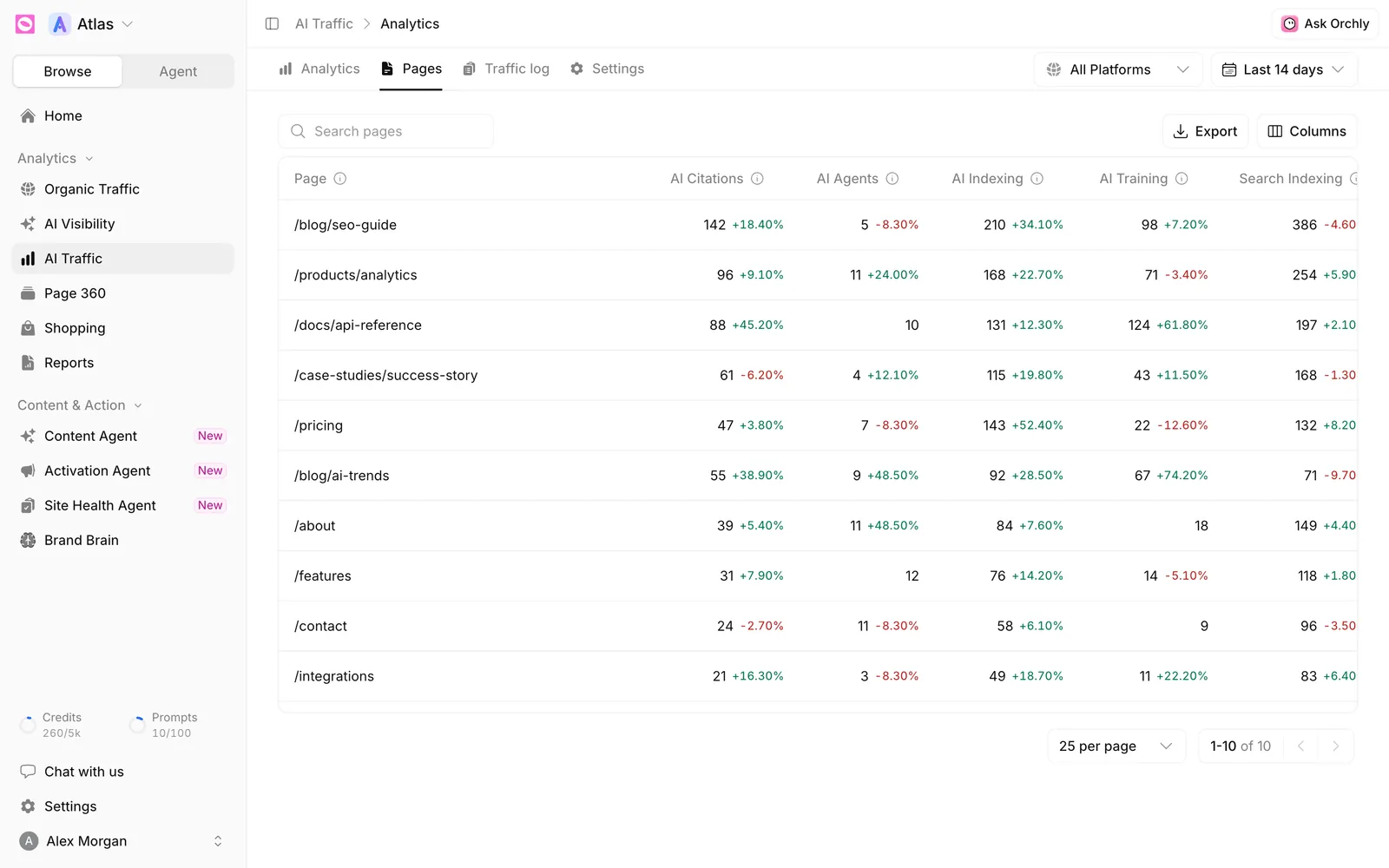
| Column | What it counts |
|---|---|
| Page | The path that was visited |
| AI Citations | AI fetching the page live to answer someone’s question |
| AI Agents | AI acting for a person, such as browsing, shopping or coding |
| AI Indexing | AI search engines adding the page to their index |
| AI Training | AI companies’ crawlers collecting training data |
| Search Indexing | Google, Bing, Apple and other classic search crawlers |
| Human Referrals | People who clicked through from an AI answer |
| Total | Every visit to the page, bots and people together |
The table sorts by Total to start. Click any column to re-sort, use Search pages to find a path, Columns to hide what you don’t need and Export to download it.
An AI Citation visit happens because someone asked ChatGPT, Claude or Perplexity a question just now and it went to your page for the answer. Pages with lots of these are the ones AI already trusts. Pages with lots of AI Training but no AI Citations are being read but not used in answers yet.
The Traffic log: every request, one row
Switch to Traffic log when you need the detail behind a number, like “did GPTBot really hit /pricing yesterday, and did it get a 200?”
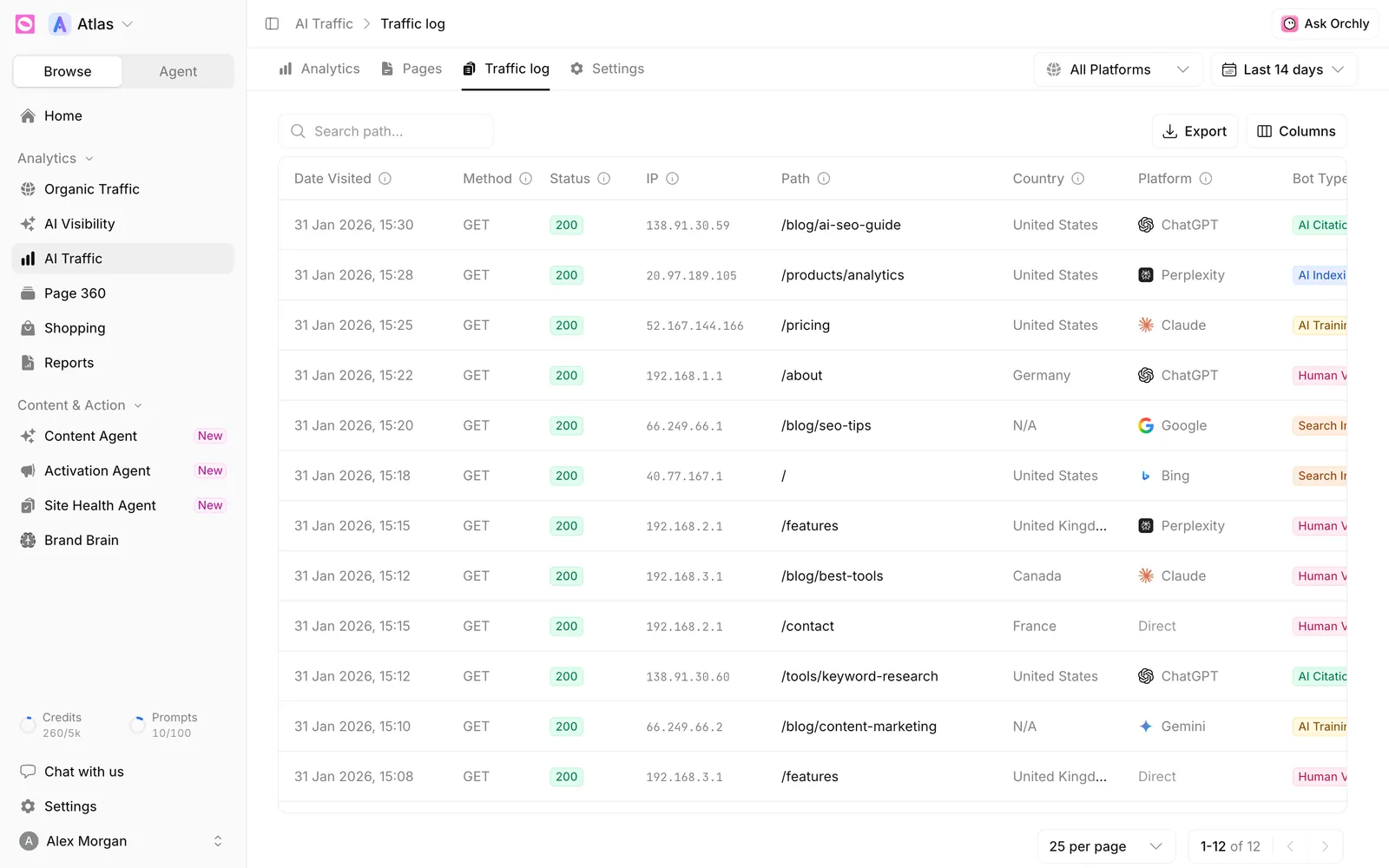
| Column | What it shows |
|---|---|
| Date Visited | When the request reached your site |
| Method | The HTTP method. Only page reads are logged, so it’s always GET |
| Status | The HTTP status your server returned. Hover it to see what it means |
| IP | A salted one-way hash of the address, not the address itself |
| Path | The page that was requested. Click it to open the page |
| Country | Where the request came from |
| Platform | The AI product behind it, such as ChatGPT, Perplexity or Gemini. People with no AI source show as Direct |
| Bot Type | Why the visit happened. Hover the tag for a plain-English definition |
| Verified | Whether the bot is who it claims to be |
| Bot | The exact bot name, like ChatGPT-User or Googlebot, or the referral source for a person |
The IP hash means you can spot the same visitor making repeat requests without the log holding personal data.
What the Verified column means
A user agent is just a string, so scrapers often pretend to be GPTBot or Googlebot. Orchly checks each bot visit against the IP ranges and DNS records the bot’s company publishes.
- Verified: the request came from an address that company publishes for this bot.
- Fake: it used the bot’s name from an address the company doesn’t own. Fakes are left out of every chart and count.
- Unchecked: the company publishes no way to check its bot, or the check couldn’t finish. These are counted as normal.
People, and rows logged before the check existed, show a dash. More on how the check works in AI bot types and verified bots explained.
Filter, search and export the log
- Platform and dates. Use the picker at the top right to narrow to one AI platform and a date range.
- Search path… finds every request to a URL or section, like
/blog/. - Columns hides the ones you don’t need.
- Export downloads the rows as a CSV, handy for a developer chasing a 404 or a blocked bot.
A few questions the log answers fast:
- Is a bot blocked? Filter to the platform and look for 403 or 5xx in Status.
- Which pages does ChatGPT fetch for live answers? Pick ChatGPT and scan for AI Citation rows.
- Is that traffic spike real? Check the Verified column. A wave of Fake rows is scrapers, not AI engines.
The log fills as visits happen. If it says No traffic recorded yet, check the Settings tab to confirm tracking is active. If your site connects through Google Analytics, you’ll only see human visits, never bots. See how to connect a CMS to track AI traffic.