How to check if a page is indexed by Google
Four ways to check if a page is indexed by Google, what crawled and discovered but not indexed mean, and how to watch indexing at scale in Orchly.
The fastest way to check if a page is indexed by Google is to search site: followed by the full URL, like site:yoursite.com/pricing. If the page shows up, it’s indexed. If nothing comes back, it isn’t, and it can’t earn a single click until that changes.
That quick check is fine for one page. This guide covers all the ways to check, what the trickier statuses mean, and how to watch indexing across your whole site in Orchly instead of one URL at a time.
Four ways to check a single page
- The
site:operator. Searchsite:yoursite.com/your-pagein Google. Results mean indexed; no results mean not indexed. - The URL Inspection tool. In Google Search Console, paste the URL into the inspection bar. “URL is on Google” means it’s indexed; “URL is not on Google” means it isn’t, with a reason.
- The Page indexing report. Also in Search Console, this report lists which pages are indexed and which aren’t, grouped by status.
- A dedicated tool like Orchly. Instead of checking URLs one by one, Orchly pulls your whole index status from Search Console into one view.
What do the Google indexing statuses mean?
Google doesn’t just say indexed or not. Orchly shows each page’s coverage state in Google’s own wording. These are the ones you’ll meet most:
| Status | What it means |
|---|---|
| Submitted and indexed | In your sitemap and in Google’s index, so the page can rank. This is the goal. |
| Crawled – not indexed | Google fetched the page but chose not to index it. Usually a quality call: thin, near-duplicate or low-demand content. |
| Discovered – not indexed | Google knows the URL exists but hasn’t crawled it yet, often because of crawl budget or a slow server. |
| Unknown to Google | Google has no record of the URL. Link to it internally and make sure it’s in a submitted sitemap. |
| Page with redirect | The URL redirects, so Google indexes the destination instead. Normal for moved pages. |
| Duplicate (different canonical) | Google picked another URL as the canonical, overriding the one the page declares. |
| Duplicate (no canonical) | Google sees a duplicate and the page declares no canonical, so Google chose one. |
| Alternate w/ canonical | A variant that correctly points at its canonical page. Expected, not a problem. |
| Excluded by ‘noindex’ | The page tells Google not to index it. Fine for thank-you pages, a mistake anywhere else. |
| Blocked by robots.txt | Your robots.txt stops Google crawling the URL. |
| Not found (404), Soft 404, Blocked (4xx), Server error (5xx), Redirect error | Google couldn’t get a usable page. Fix the URL or remove links to it. |
Hover the info icon next to any status in Orchly for the same explanation.
“Crawled – currently not indexed” usually means Google saw the page and wasn’t impressed. Thin content, near-duplicates and pages with no internal links are common causes. Improving the page and linking to it from stronger pages is the fix.
How to check indexing for your whole site in Orchly
Checking URLs one by one doesn’t scale past a handful of pages. Go to Analytics → Organic Traffic and open the Indexing tab. It needs Google Search Console connected; see how to connect Google Search Console.
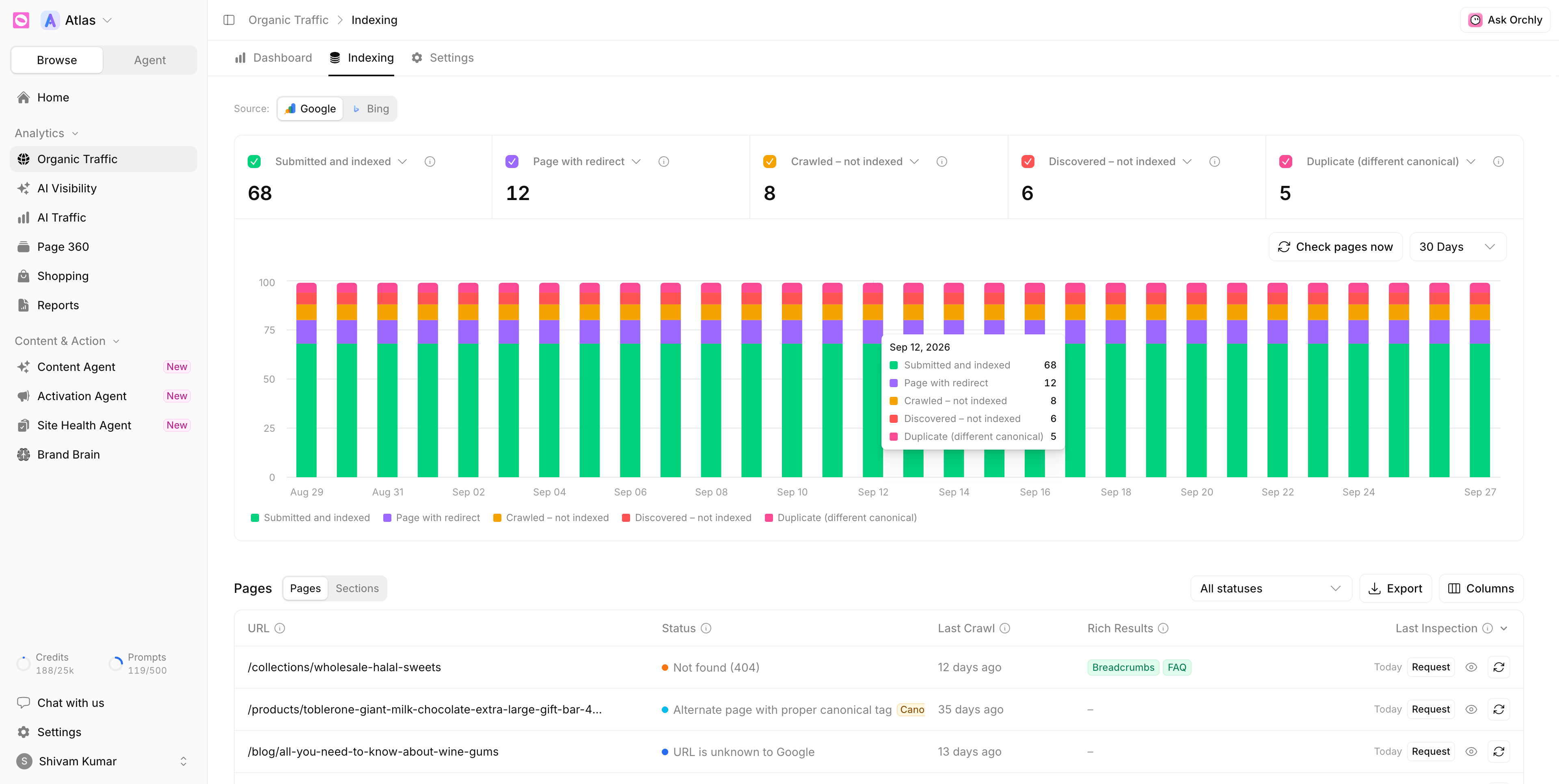
- Status cards. The cards at the top count pages in each status. Use the arrow on a card to show a different status in that slot, and tick it to add or remove it from the chart.
- Pages by state per day. A stacked chart of those counts over 30 Days or 90 Days, so a sudden drop in indexed pages stands out.
- Check pages now. Orchly asks Google’s URL Inspection API about your pages once a day. Click this to run it now instead of waiting.
Read the Pages table
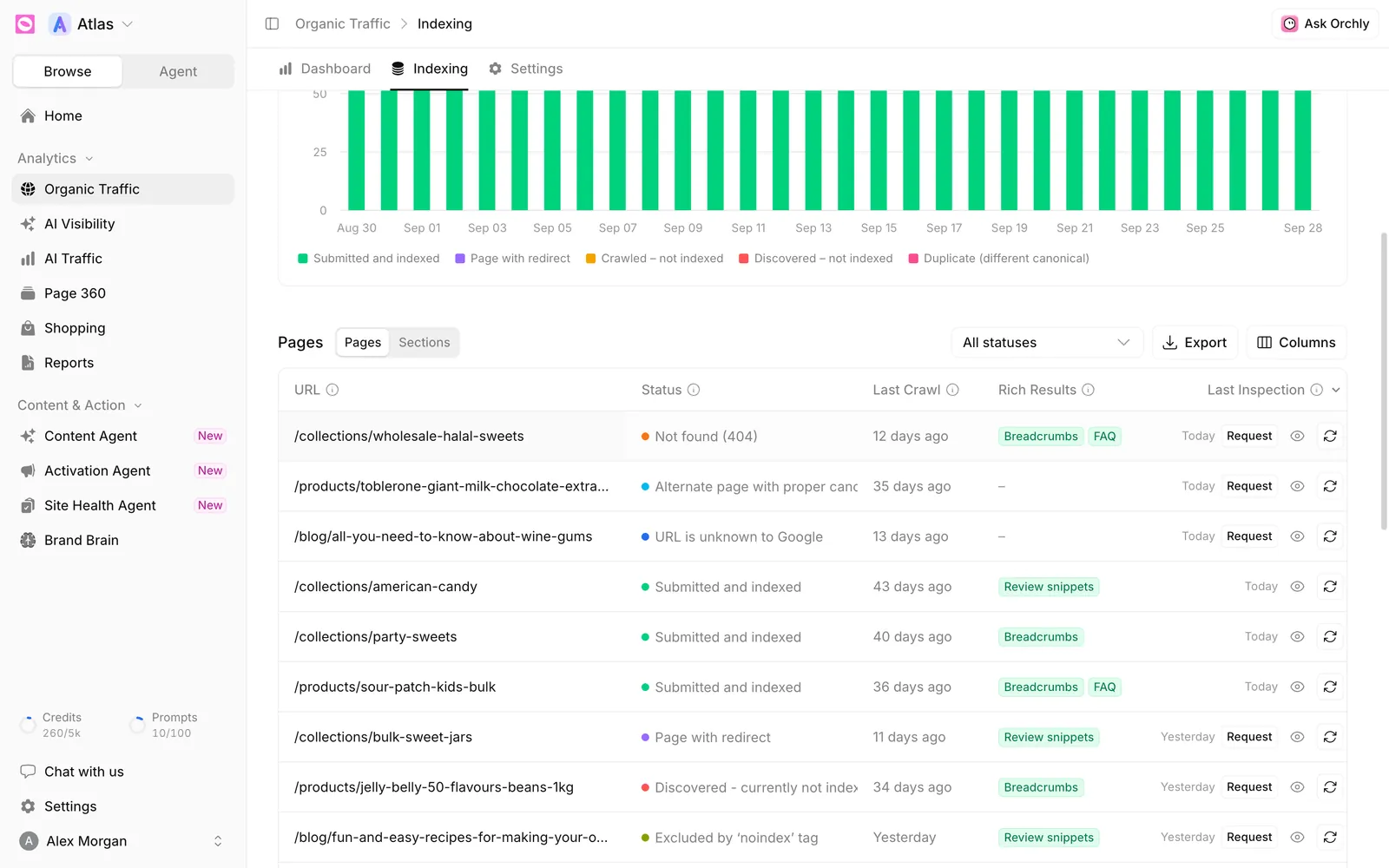
The table lists every URL from your sitemaps with its Status, Last Crawl, Rich Results and Last Inspection. Filter to one status with the All statuses dropdown, or switch from Pages to Sections to see indexed and not-indexed counts per top-level folder, like /blog or /help.
Each row has three actions:
- Request opens URL Inspection in Search Console, where you press Request Indexing. Google only accepts that request from a signed-in owner, so Orchly can’t do it for you.
- The eye icon opens the page’s details: verdict, robots.txt and page fetch state, the canonical you declared and the one Google chose, rich results, whether it’s in a sitemap (Not in any sitemap is a red flag), referring URLs, and links to Open in Search Console and View live page.
- Re-check with Google inspects just that page now. It uses one of your daily inspection quota.
If you’ve connected Bing Webmaster Tools, a Source: switch at the top of the Indexing tab flips between Google and Bing. Bing’s index feeds Microsoft Copilot and ChatGPT search, so a page missing from Bing can miss out on AI answers too.
Fix what isn’t indexed
A quick triage once you know the status:
- Discovered or Unknown to Google. Make sure the page is in your sitemap and linked from other pages, then click Request.
- Crawled – not indexed. Strengthen the content and add internal links from pages that already rank.
- Duplicate (different canonical). Check the canonical tag and internal links point at the URL you want indexed.
- Excluded by ‘noindex’ or Blocked by robots.txt. If you want the page indexed, remove the tag or rule.
Site Health flags many of these causes across your site, and the Site Health Agent can fix them for you.