How to create a custom AI agent skill
Write your own skill with clear instructions so every agent that uses it produces consistent, on-brand work.
To create a custom AI agent skill in Orchly, open Skills in the Agent sidebar, click New skill, give it a name and a one-line description, write the steps in the Playbook (markdown) box, and click Save. Every agent and chat in your workspace can use it from then on.
A custom skill captures how your team does a job, like a comparison page with your exact structure or a LinkedIn post in your format, so the output is consistent no matter who asks. New to skills? Start with what are skills.
Three ways to create a custom skill
- From the Skills page. Switch the sidebar to Agent, open Skills and click New skill.
- From a chat. Open + → Use a skill and click Create new skill at the bottom of the list. The same editor opens without leaving the conversation.
- By asking. Tell Ask Orchly what you want, for example “make a skill for LinkedIn posts in our voice”. It writes the skill and opens it in the artifact pane so you can check it.
Copy a built-in skill
If your job is close to one Orchly already does, start from that. Open the built-in skill on the Skills page and click Duplicate & customize. You get an editable copy under Custom, with the full playbook to change. The original stays as it was.
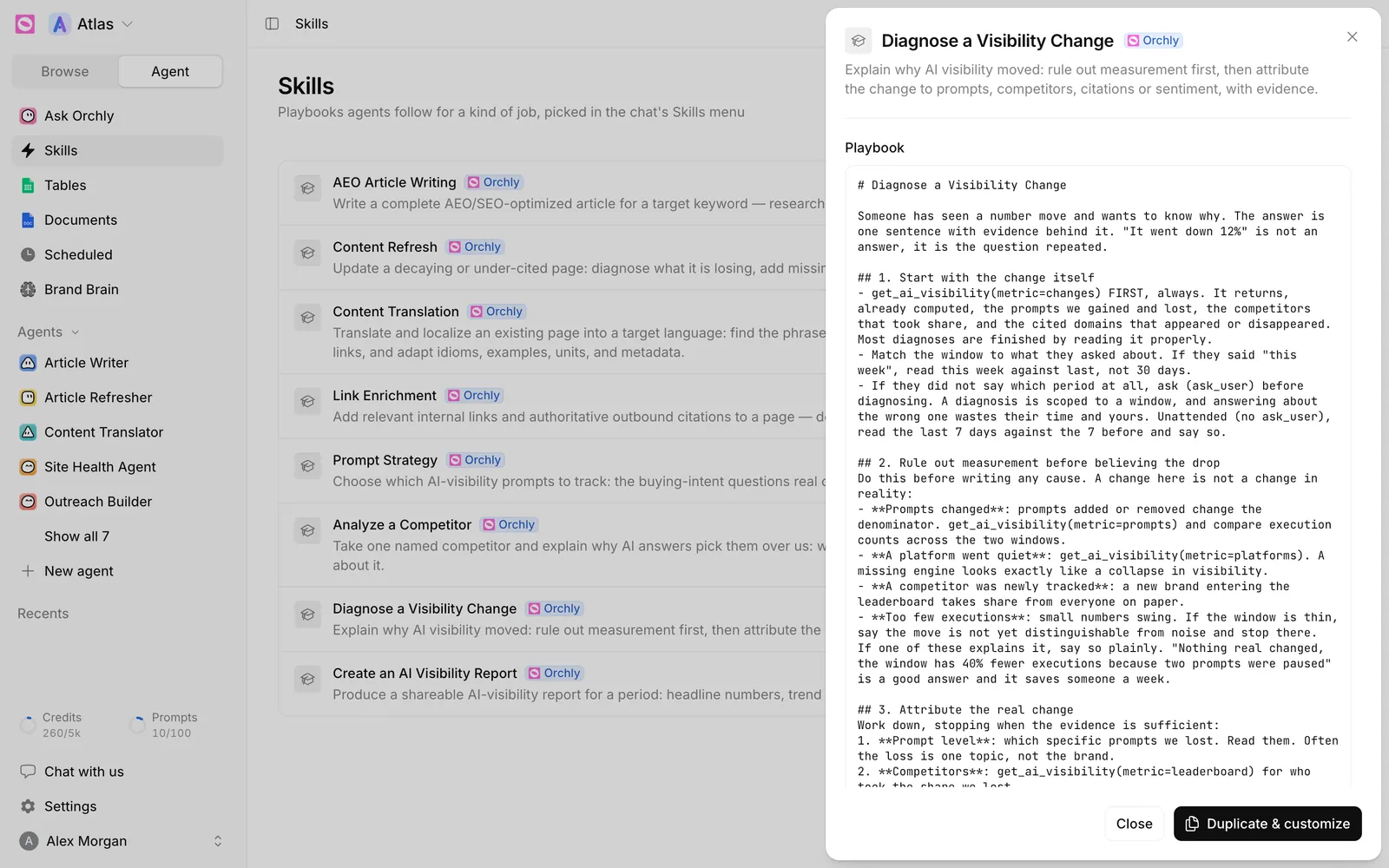
Reading a built-in playbook is also the fastest way to learn what a good one looks like. Diagnose a Visibility Change, for example, tells the agent which data to read first, what to rule out before believing a drop, and how to write the answer.
Name and describe it
Fill in Skill name at the top. Then write the description in one line: “what it does and when to use it”. This line matters more than it looks. Agents read it to decide whether to load the skill for a request, so a vague description means the skill gets skipped.
- Weak: “LinkedIn stuff”
- Better: “Turn a published article into a LinkedIn post of under 1,300 characters, with a hook line and three takeaways”
How to write the playbook
The Playbook (markdown) box holds the instructions. The agent reads them and carries them out with judgment, using whatever tools it has.
Write it like a process you’d hand a capable new teammate:
- The goal in one line.
- The steps, in order: what to research, what to read, what to write.
- The structure of the output: headings, sections, length, format.
- What to avoid, and what “done” looks like.
Use markdown headings and lists so the steps are easy to follow. For example:
# Comparison page

Write a page that ranks for "[our product] vs [competitor]" and gets cited in AI answers.

## Steps
1. Read the competitor's pricing and feature pages.
2. Check which prompts about this comparison we track, and who AI names first.
3. Draft with these sections: Summary table, Pricing, Features, Who each is for, FAQ.

## Rules
- Be fair to the competitor. No claims we can't source.
- Keep it under 1,800 words.Pick a page you’re proud of and work backwards. What steps produced it? What structure does it follow? Write those down and the skill reproduces your best work, not your average.
Leave the brand voice to Brand Brain
You don’t need to restate your tone, product facts or banned words in each skill. Agents already read Brand Brain, including your tone and writing rules and company and product facts. Keep the skill about the task and its structure. It stays reusable, and a voice change only has to happen in one place.
Put the skill to work
Click Save. The skill appears under Custom on the Skills page and in the chat’s Use a skill menu.
- In chat, type / and pick it.
- In an agent, add it in the Skills row so the agent can load it on every run. See build your first agent.
Run it a few times and read the output. When something’s off, open the skill, fix the playbook and save. Every agent using it picks up the change on its next run.
Deleting a skill
Open the skill and click Delete. It’s removed for good, and agents that had it can no longer load it, so check the agent’s Skills row afterwards.