How to use Ask Orchly, your AI marketing agent
Ask Orchly answers questions about your data, writes content and runs your other agents. Open it from any page and hand it work.
Ask Orchly is the AI marketing agent built into Orchly. It reads your AI visibility, Search Console and traffic data, writes and edits content, builds tables and agents for you, and hands bigger jobs to your other agents. You talk to it in plain language, the same way you’d brief a teammate.
It has access to every tool and skill in your workspace, so you rarely need to set anything up before asking.
Where to find Ask Orchly
There are two ways in:
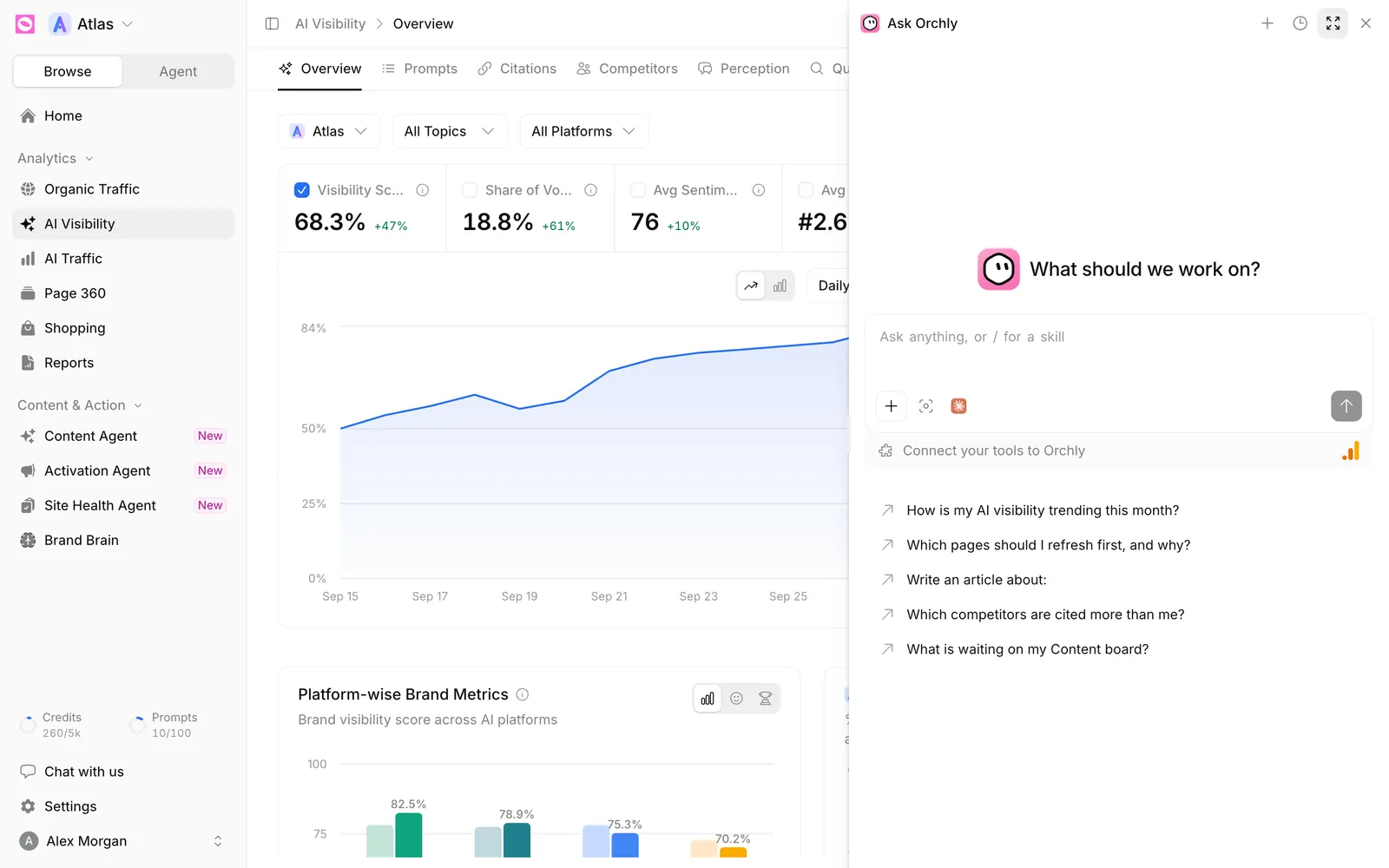
- The header button. Every page has an Ask Orchly button in the top right. It opens a chat drawer beside the page you’re on, so you can ask about the chart in front of you without leaving it.
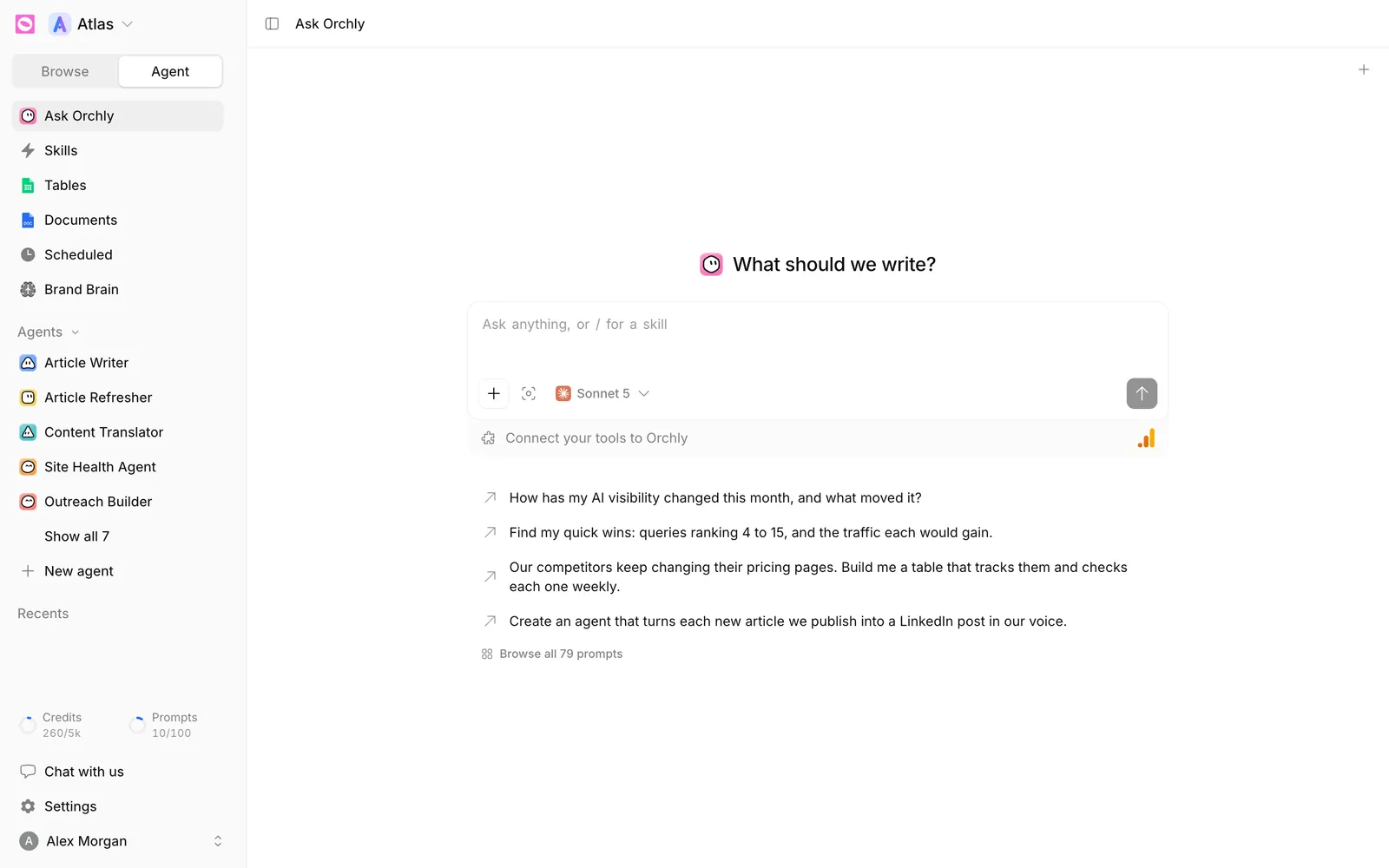
- The full page. Switch the sidebar from Browse to Agent and click Ask Orchly at the top. This gives the chat the whole screen, with room for the artifact pane on the right.
The drawer has a + for a new chat, a clock icon for your history, and an Open full page button that carries the same conversation over to the Agents page.
How to ask Ask Orchly a question
Type into the box that says “Ask anything, or / for a skill” and press send. A fresh chat shows a few starter prompts, like “How has my AI visibility changed this month, and what moved it?”, which you can click to send.
Good first questions are specific and tied to your data:
- Which competitors are cited more than me in ChatGPT and Perplexity?
- Which pages lost the most Search Console clicks in the last 28 days, and which should I refresh first?
- Write an article about [topic] optimized for Google AI Overviews.
- Build me a table that tracks competitor pricing pages and checks each one weekly.
While it works, the send button turns into a stop button (press Esc to stop). Hover over an answer to Copy it or Regenerate the latest one. Each answer also shows the credits it used. See how credits work.
The model name next to + picks the AI for this chat. It starts on Sonnet 5 (Claude Sonnet 5). Faster, cheaper models use fewer credits per turn, which suits short, repetitive questions.
What’s in the + menu?
The + button next to the message box holds everything you can add to a chat.
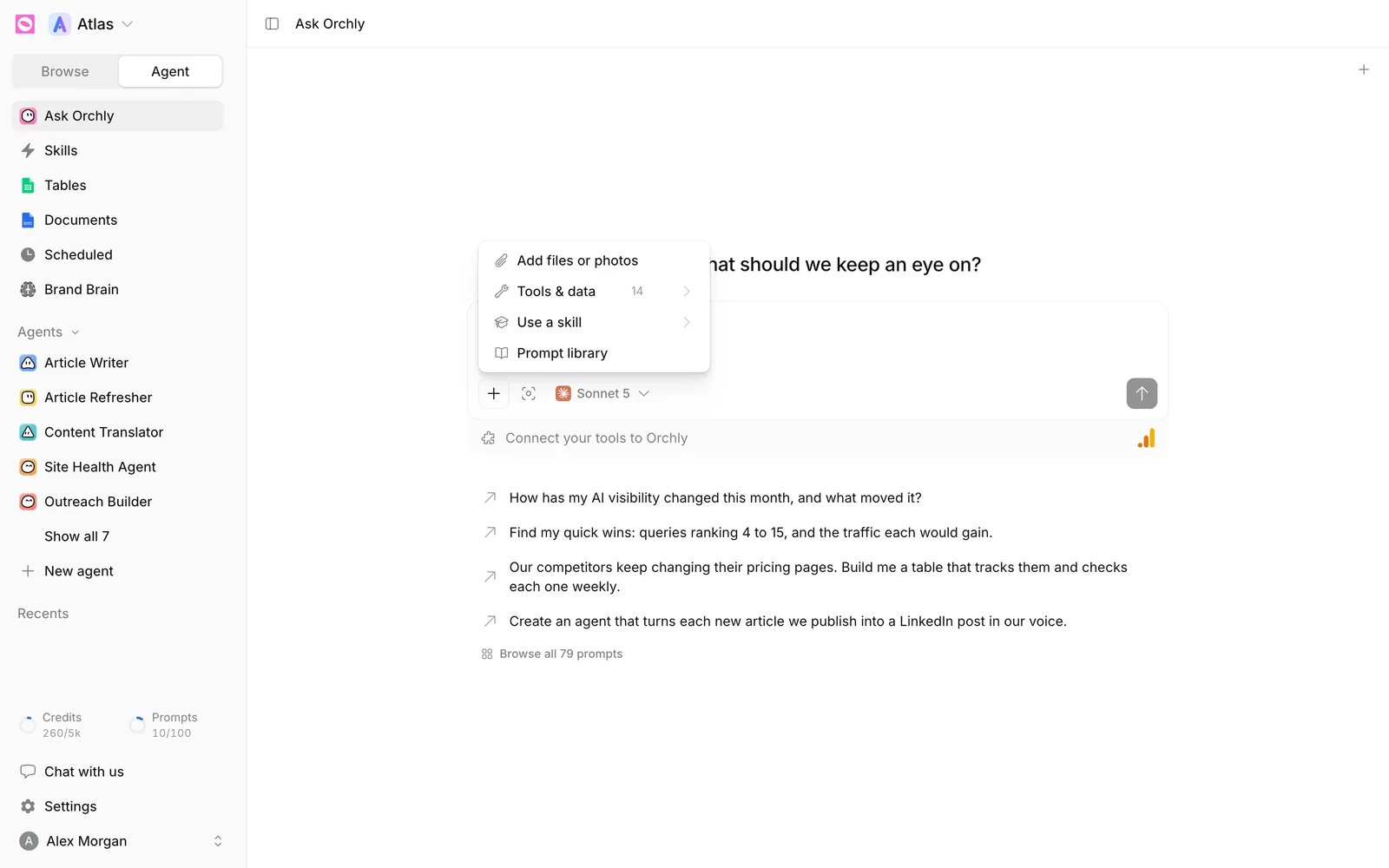
- Add files or photos attaches a file or image to your message, like a brief, a CSV or a screenshot.
- Tools & data shows what the agent can use in this chat, in three groups (more below).
- Use a skill loads a playbook for the job. See what are skills.
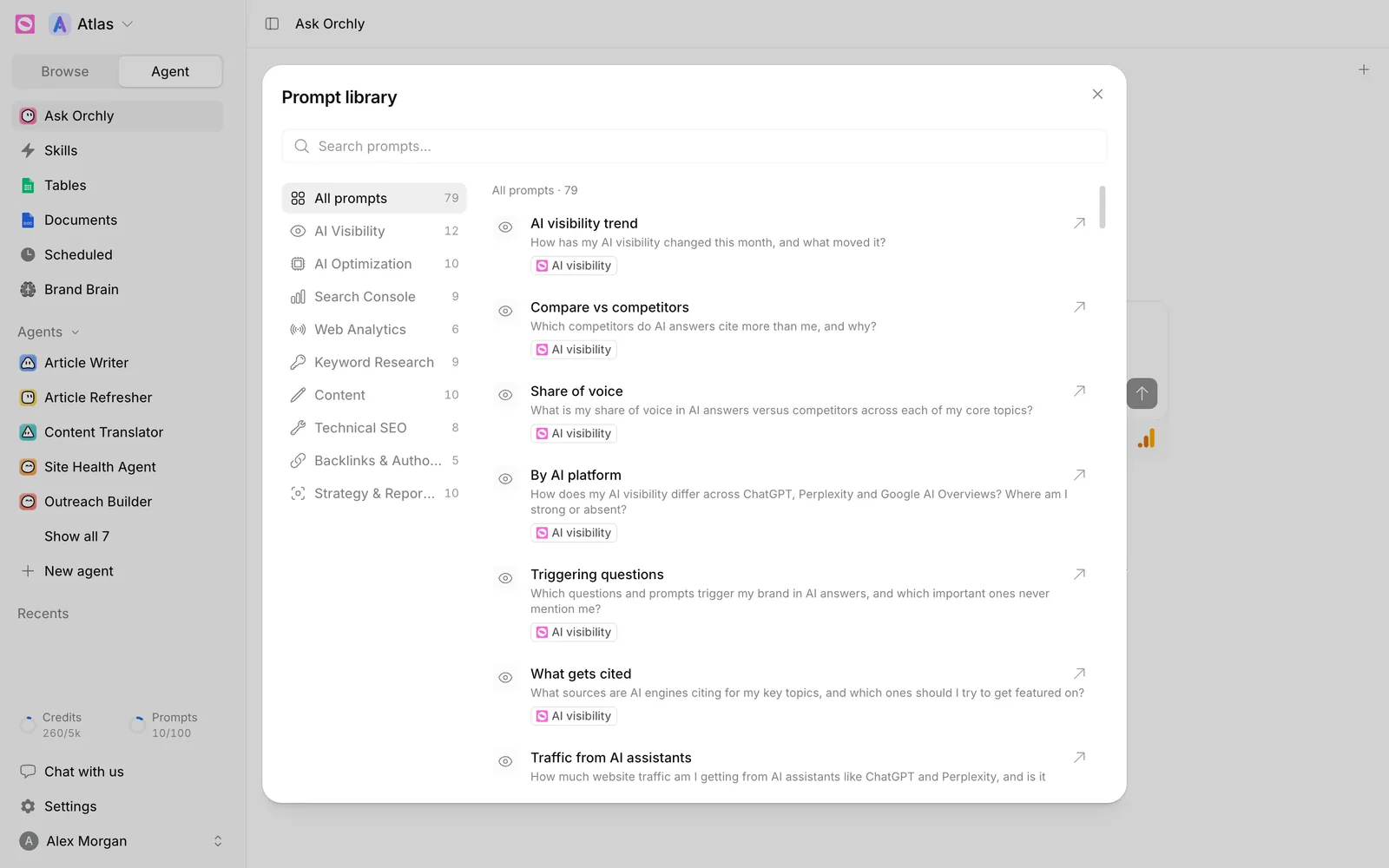
- Prompt library opens ready-made prompts.
Tools & data
This submenu has three sections with a switch on each row:
- Can do: the ability bundles, such as Web Research, SEO & Competitor Research, Content Optimization, Generate Images, Capture Screenshots and Publish on Site.
- Knows about: your data sources, including Brand Brain (always on), AI Visibility, AI Traffic, Search Console (GSC), Bing Webmaster Tools, Analytics (GA4), Your Content and Website Sitemap. A source you haven’t connected shows Connect or Set up instead of a switch.
- Can post to: your CMS and Slack.
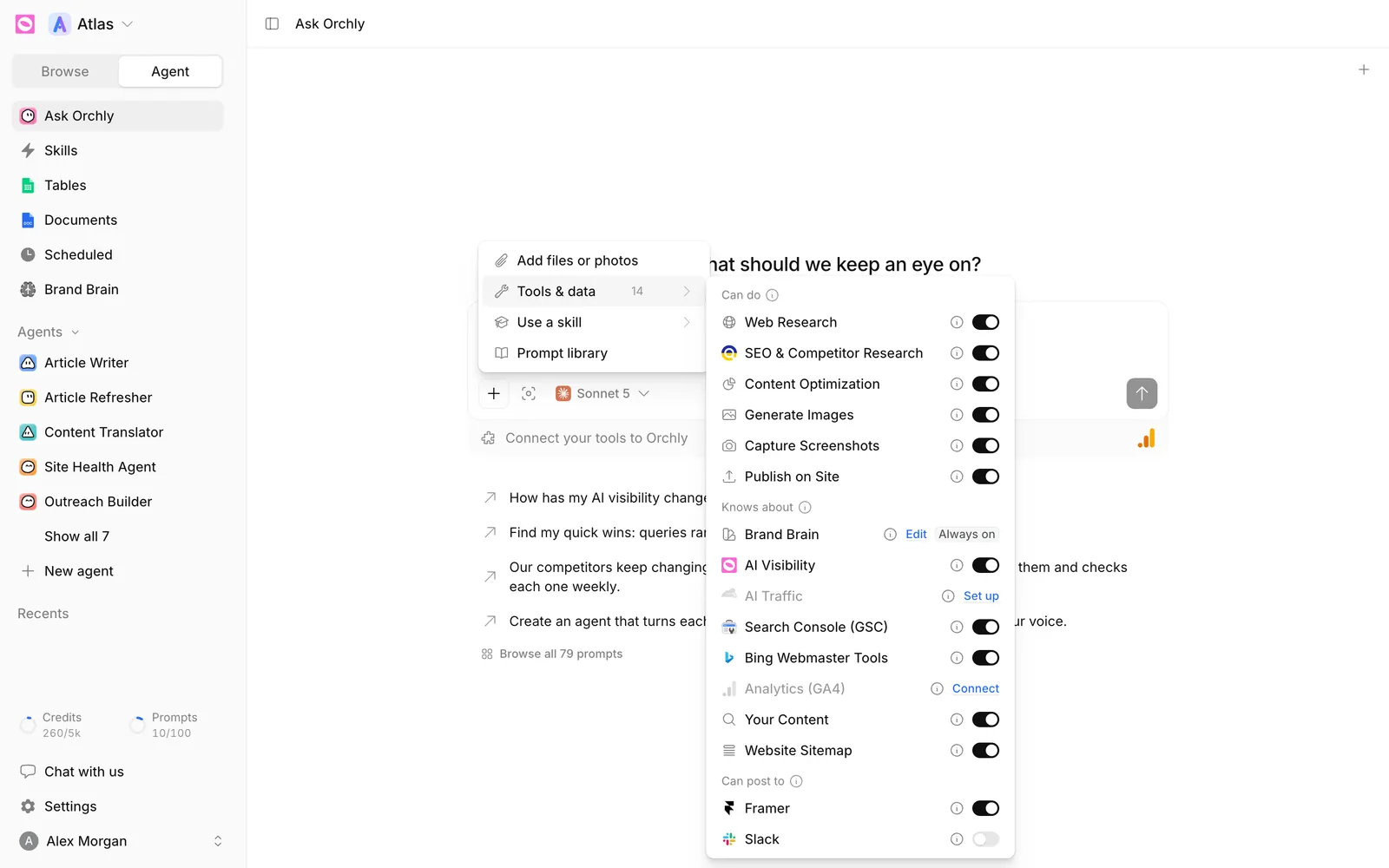
Anything you switch on beyond the agent’s saved setup gets an amber This chat badge. That change only applies to the current conversation. Abilities and tools covers each one.
What needs your approval?
Ask Orchly asks before anything that costs credits, removes data or leaves Orchly, like adding tracked prompts, deleting a schedule, publishing to your CMS or posting to Slack. An Approve this change card appears above the message box. Click Approve to go ahead or Not now to skip it.
Reading data, researching and drafting don’t ask. Publishing saves as a draft by default, even with your CMS switched on under Can post to. See publish AI content to your CMS.
Use a skill with /
Type / in the message box, or open + → Use a skill, to pick a skill. Ask Orchly then follows that playbook for the request. The built-in list includes AEO Article Writing, Diagnose a Visibility Change and Create an AI Visibility Report. Create new skill at the bottom of the list lets you write your own. See create a custom skill.
Browse the prompt library
The Prompt library holds nearly 80 prompts grouped by job: AI Visibility, AI Optimization, Search Console, Web Analytics, Keyword Research, Content, Technical SEO, Backlinks & Authority, and Strategy & Reporting. Search it, or click a prompt to use it. You can also open it from the Browse all prompts link under the starters.
Ask about something on screen
The target icon next to + is Select from screen. Click it, then click a chart, card or table on the page. It’s added to your message, so you can ask “why did this drop?” about the exact chart you’re looking at. Press Esc to cancel.
Charts, cards and the artifact pane
Ask Orchly can answer with a chart (bar, line, area, stacked, donut or big headline numbers) when that’s clearer than text.
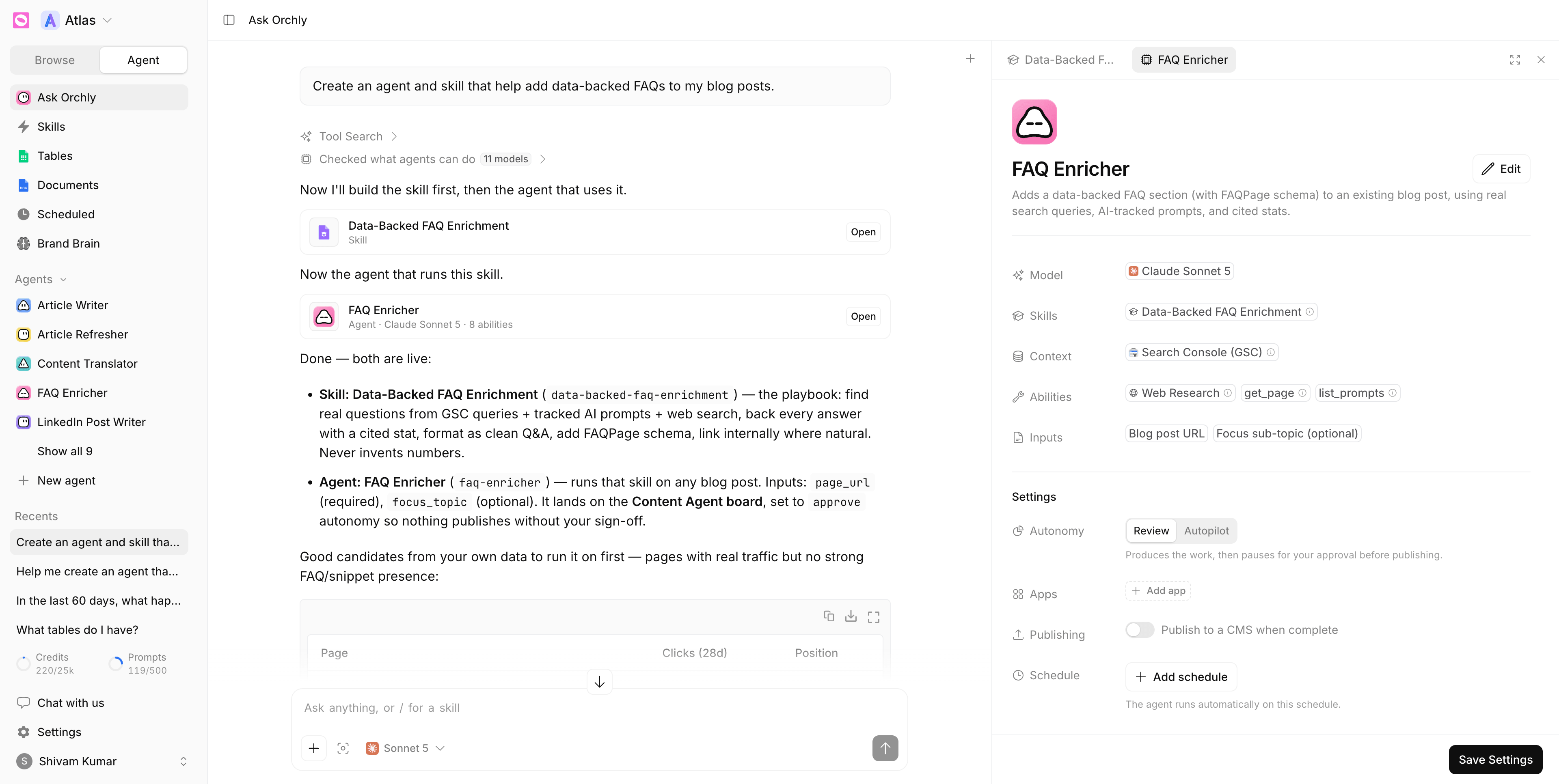
When it creates or opens something, like a document, table, agent, skill or schedule, it shows a card in the chat. Click Open and the item opens in the artifact pane on the right, in its real editor. Several items open as tabs. If a document is open in the pane, Ask Orchly proposes edits in place and you accept or reject each one.
Long jobs keep running in the background
A reply that’s still working after about 25 seconds moves to the background. You can close the tab and it keeps going. Open the conversation again from Recents and you’ll see where it’s up to. If a reply stops early, you’ll see “This answer stopped before it finished” with a Try again button.
Memory saved to Brand Brain
Tell Ask Orchly something worth keeping, like “we never call it a CRM, it’s a sales platform”, and it saves it to Brand Brain. A card confirms “Saved to Brand Brain” with the section it went to, including Personal for how you like to work. Saving doesn’t ask first, so the card has an Undo button.
Talk to your other agents
Ask Orchly can start any agent in your workspace. Ask it to “run the Article Refresher on our pricing page” and it starts the run and links you to it. For bulk jobs it starts one run per item.
To chat with one agent directly, click its name under Agents in the sidebar. See what are Orchly agents.
Find old chats in Recents
Every conversation is listed under Recents in the Agent sidebar, newest first. Conversations started from Slack show up there too. Click one to pick up where you left off.