How to train AI agents on your docs and website
Upload files, add links and connect your sitemap so agents learn from your docs and site, and new claims come to you for review.
To train AI agents on your docs and website, open Brand Brain and use its two Knowledge sections. Files & links takes your PDFs, Word docs and URLs. Website re-reads your key pages every month and, once you connect a sitemap, indexes every page you’ve published.
This is where agents find the details they can’t guess: your real pricing, the numbers in a case study, the exact names of your plans. An agent that can search your pricing sheet quotes it. One that can’t will make something up.
How to train AI agents on your docs
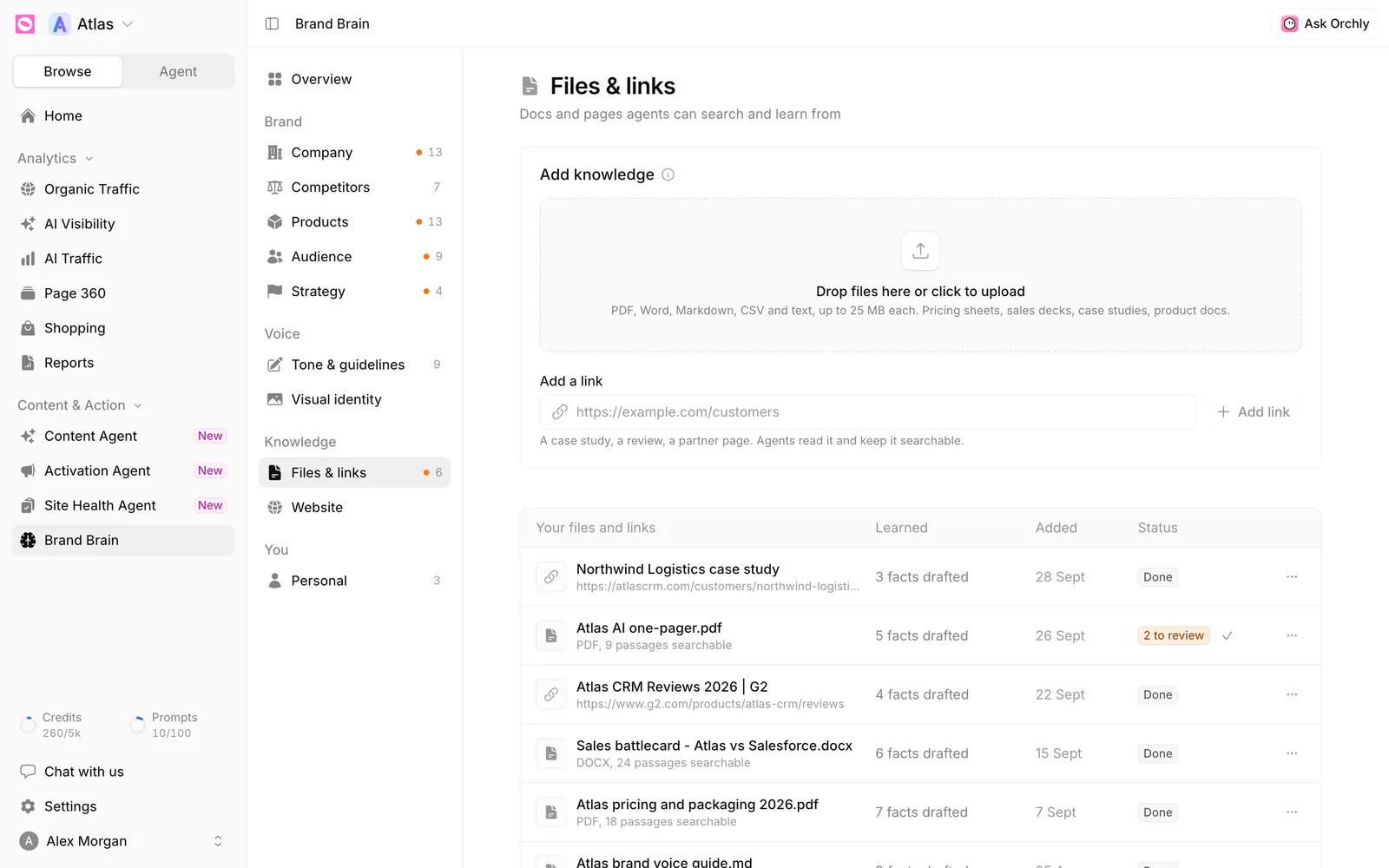
Go to Brand Brain > Files & links.
To upload a file:
- Drag files onto the Add knowledge card, or click it to choose them. You can add several at once.
- Each shows Uploading while it’s read. When it’s in, you’ll see “Searchable now. Its facts will appear here for review in a minute.”
To add a link:
- Paste a full URL, starting with
https://, into Add a link. - Click Add link.
Links suit things you don’t host as files: a case study, a G2 review page, a partner’s page about you.
What file types can you upload?
The upload area accepts PDF, Word, Markdown, CSV and text, up to 25 MB each. That means .pdf, .docx, .md, .txt and .csv.
The file needs real text. A scanned PDF of page images shows an error saying there’s no readable text. Images on their own aren’t supported. Brand colours and example covers go under Visual identity.
Good things to upload:
- Pricing and packaging sheets
- Sales decks and battlecards
- Case studies and customer stories
- Product docs and one-pagers
- Your brand voice or style guide
What happens after you upload?
Two things happen.
The whole text becomes searchable. Agents search it whenever they need detail. The row shows how many passages, like “PDF, 18 passages searchable”.
Key facts get drafted into sections. Brand Brain pulls out short, checkable statements and files each under Company, Products, Audience or Tone & guidelines. They arrive as suggestions, and agents don’t use them until you keep them.
The table under Your files and links tracks each one:
| Column | What it shows |
|---|---|
| Learned | How many facts were drafted, like “5 facts drafted”, or Could not read |
| Added | The date you added it |
| Status | Done, N to review when suggestions are waiting, or an error |
When a row says 2 to review, click the check mark to keep them all, or pick Dismiss its N suggestions from the row menu. To go one by one, or compare a fact that disagrees with one you have, use Needs your review on the Overview. See how to review what Brand Brain learns.
Upload last year’s pricing sheet and Brand Brain drafts last year’s prices. Conflicts get flagged, but it’s simpler to upload only current material.
To remove a file, open its row menu, choose Remove and confirm. Agents can no longer search it. Facts you already kept from it stay in Brand Brain, so edit those separately.
How does Brand Brain read your website?
Brand Brain > Website reads your site in two ways. Its subtitle: “Key pages, re-read monthly. New claims come to you for review.”
Your site is where most of your facts already live. It’s also where ChatGPT, Perplexity and Google AI Overviews learn about you. If a page is out of date, AI answers often repeat it, so Brand Brain flags when a page disagrees with what agents know.
What are key pages?
Key pages feed Company, Products, Audience and Tone & guidelines. Orchly picks your home page plus up to 8 pages most likely to describe the business, like pricing, features, integrations, about and customers. Any page you pin is added on top.
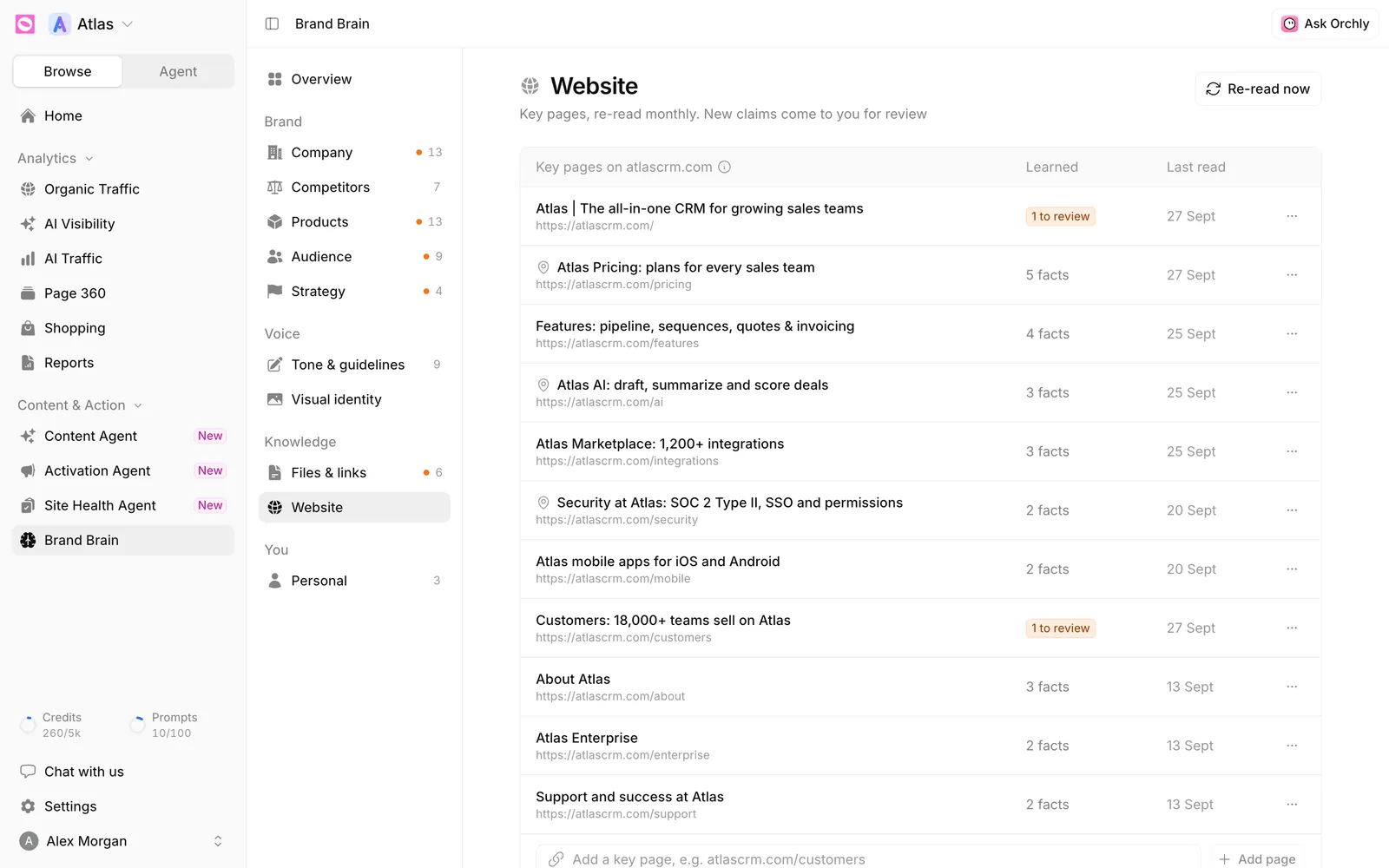
Each row shows Learned (facts from it, or N to review), Last read, and a pin icon if you’ve chosen to always read it.
On the first of every month, Brand Brain re-reads key pages that have changed. New claims arrive as suggestions and don’t reach agents until you keep them.
- Add a page. Paste the URL into Add a key page at the bottom and click Add page. Pages you add are pinned.
- Pin a page. Use Always read this page from its row menu, and Unpin to undo.
- Accept a page’s suggestions. Use Keep its N suggestions from the row menu.
- Re-read now. Changed your pricing page? Click Re-read now at the top right. New facts appear for review in a few minutes.
How to connect a sitemap for AI agents
Key pages cover what you are. Your sitemap covers everything you’ve published, so agents can look up any page and link to your real integration page instead of inventing a URL. Without one, the card says “Not connected. Agents only know the key pages above.”
- On the Sitemap card, click Connect sitemap.
- Enter your Sitemap URL, like
https://example.com/sitemap.xml. Sitemap index files work too. - Optionally filter with Only include (like
/blog/, /products/) and Leave out (like/tag/, /author/, /page/), comma-separated. - Click Connect and sync.
Your sitemap is usually at /sitemap.xml and listed in robots.txt. WordPress, Webflow, Framer and most other CMSs create one for you.
Tag archives, author pages and paginated lists add noise. Put them under Leave out so agents only link to pages worth reading.
Once connected, the card shows the URL, page count, last sync and a status: Active, Syncing, Pending or Failed, with any error shown.
- Resync reads it again now.
- Edit changes the URL or filters and runs a fresh sync.
- The bin icon removes the sitemap and every page read from it. This can’t be undone.
Click Show N pages to see each page’s title and a Read, Failed or Pending status, with a search box.
Key pages are read closely and turned into facts. Sitemap pages are indexed so agents can find and link to them, but they don’t create facts to review. Files & links covers material that isn’t on your site.
Why this matters for AI search
Everything here feeds two things. Agents write from it, so content about your product is accurate. And the facts you keep become part of what Orchly checks AI answers against. If Perplexity says you have no mobile app and your product sheet says you do, Fact check shows it.