What are AI marketing agents in Orchly?
Agents are AI workers that read your data, write and refresh content, fix pages and publish, on demand or on a schedule. How they work in Orchly.
An AI marketing agent in Orchly is an AI worker that uses your data and connected tools to finish a job: write an article, refresh a page that’s losing clicks, fix a meta description, or draft an outreach pitch. You set it up once, then run it from chat, from a table or on a schedule.
Agents are how Orchly turns what it finds into work that’s done. AI visibility tracking tells you ChatGPT and Perplexity don’t cite you for a topic. An agent writes the page that fixes it.
Where do agents live?
Switch the sidebar from Browse to Agent. Your agents are listed under Agents, five at a time, with Show all for the rest and + New agent at the bottom.
- Click an agent’s name to chat with it directly.
- Hover and click the gear to open its settings.
Ask Orchly, the lead agent
Ask Orchly sits at the top of the Agent sidebar and behind the Ask Orchly button on every page. It has every tool and skill, answers questions about your data, and can start any other agent for you. When you’re not sure which agent to use, ask Ask Orchly.
Prebuilt AI marketing agents
Every workspace comes with ready-made agents, marked Orchly AI Agent. They all run on Claude Sonnet 5.
| Agent | What it does | Ships on |
|---|---|---|
| Article Writer | Researches and writes an on-brand, AEO-optimized article for review | Review |
| Article Refresher | Updates a decaying page with fresh facts, new sub-topics and stronger links | Review |
| Content Translator | Translates an existing page into another language, localized and on-brand | Review |
| Internal & External Link Enricher | Adds relevant internal links and authoritative outbound citations to a page | Autopilot |
| Meta & Schema Optimizer | Writes page metadata (title, description, canonical, social tags) and valid JSON-LD structured data | Review |
| Outreach Builder | Drafts a value-first outreach pitch to earn a backlink or AI citation on a specific page | Review |
| Site Health Agent | Turns a Site Health finding into the exact change, applied where your stack allows it | Review |
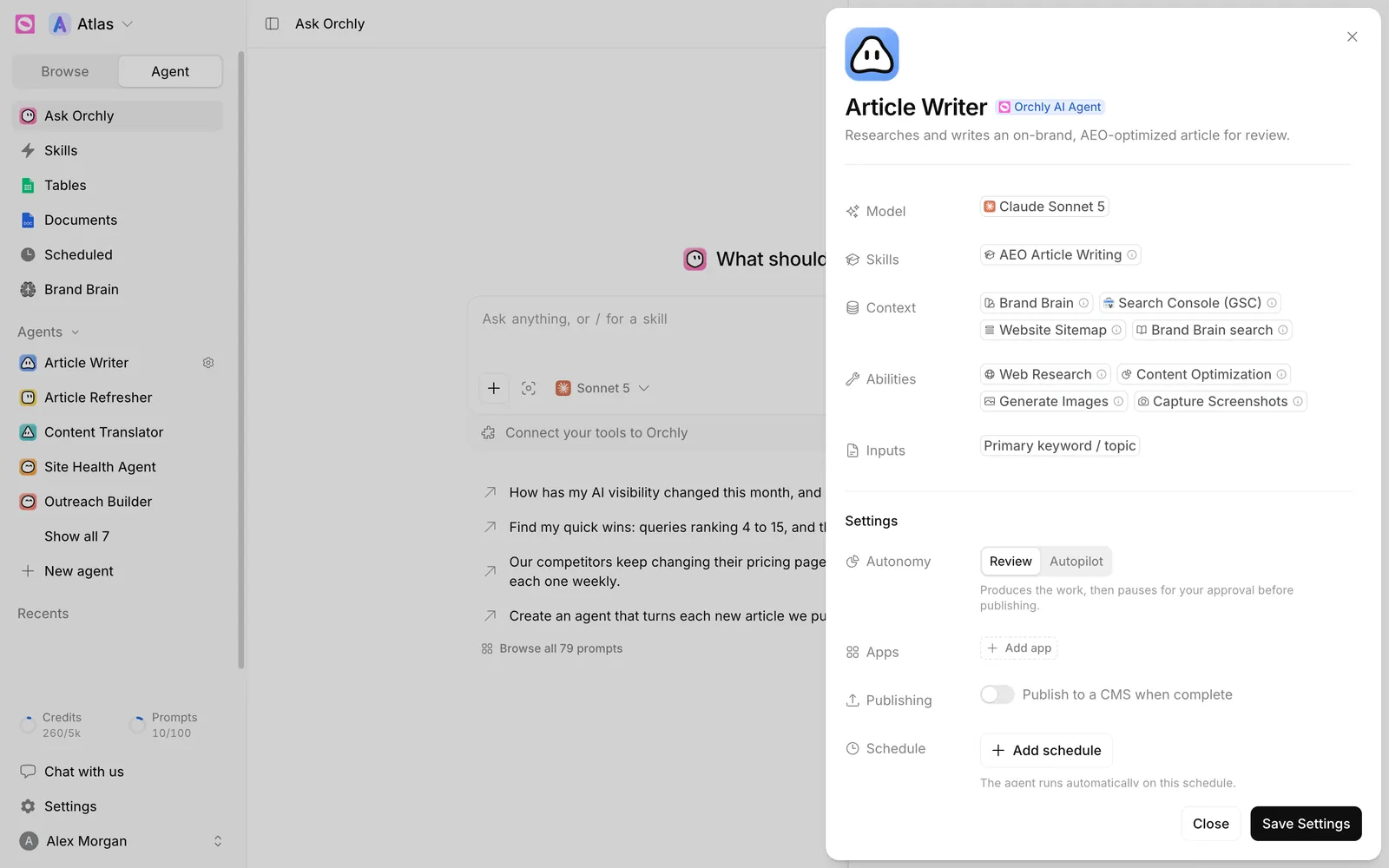
A prebuilt agent’s model, skills and abilities are fixed. You can still change its Settings: Autonomy, Apps, Publishing and Schedule, then click Save Settings.
There’s no duplicate button for agents. Ask Ask Orchly instead, for example “make a copy of the Article Writer that writes for a UK audience”, and it builds a new agent based on the original. Or build one from scratch.
Agents that work from their own boards
Three agents have their own pages on the Browse side of the sidebar, under Content & Action:
- Content Agent finds content opportunities, then writes, refreshes and translates them on a board.
- Activation Agent grows your off-site presence: Reddit threads, YouTube and backlink outreach.
- Site Health Agent turns audit issues into fixes. See fix Site Health issues with an agent.
Opportunities for these agents also show up on Home, where you approve them into the agent’s backlog.
What is an agent made of?
Open any agent and you’ll see the same rows. Each one has its own article:
- Model: the AI that does the thinking, from Claude, GPT, Gemini or DeepSeek. See build your first agent.
- Autonomy: Review pauses for your approval before publishing; Autopilot publishes on its own.
- Skills: playbooks it follows. See what are skills.
- Inputs: values it’s given each run, like a keyword or a URL.
- Context and Abilities: the data it can read and the things it can do. See abilities and tools.
- Apps: Slack, for messages and alerts.
- Publishing: where finished work goes. See publish agent output.
- Schedule: when it runs on its own. See triggers and schedules.
- Agent Instructions: the brief, in plain language.
Chat, tables or a schedule?
You can run the same agent three ways:
- In chat, for one job you want to watch.
- In a table, where an agent column runs once per row. Good for 40 pages that each need a refresh.
- On a schedule, for work that repeats every week or month.
Start in chat, check the output, then move it to a table or a schedule once you trust it.