How to use an AI agent in Slack with Orchly
Get agent updates in Slack and talk to Orchly agents right in a channel or DM. Approvals work in the thread too.
To use Orchly’s AI agent in Slack, connect it first: open Settings → Integrations, click Configure on Slack, then Connect Slack, and approve the app in your Slack workspace. After that, agents can post digests and alerts to your channels, and anyone on your team can mention Orchly in a channel or DM it and get answers in the thread.
How do I connect Slack?
- Go to Settings → Integrations and click Configure on Slack.
- Click Connect Slack. You sign in on Slack.
- Pick the Slack workspace and approve the permissions.
You land back in Orchly and the badge shows Connected. There’s no channel to pick at this step. Channels are chosen per agent, covered below.
How do I chat with the AI agent in Slack?
This is the part most teams use every day. You don’t need to open Orchly to ask it something.
- In a channel: mention Orchly and ask your question, like “@Orchly which pages lost the most clicks this week?”
- In a DM: message Orchly directly. No mention needed.
Orchly answers in the thread and streams the reply as it writes. It has the same tools, data and Brand Brain context as Ask Orchly in the app, and it uses the same credits. Keep replying in that thread and it keeps the context, so you can follow up without mentioning it again.
Answers are kept short for Slack. For anything that needs a chart or a long table, Orchly links to the right page in the app.
Approving changes from Slack
When Orchly wants to do something that needs your OK, like publishing a draft or applying a fix, it posts an Approve this? card in the thread with Approve and Deny buttons. Click one and Orchly carries on in the same thread. The thread notes who decided, for example “Approved by Sam Lee.”
It works the same way as the approval card in Ask Orchly.
Long-running work reports back
If you ask for something that runs in the background, like a full content refresh, Orchly reports back to the Slack thread you started it from. You’ll get the result there, or approval cards if the run pauses for review.
Continue the conversation in Orchly
Every Slack conversation is a normal Orchly agent thread. It appears in Recents in the Agent sidebar, so you can open it in the app and pick up where you left off.
Orchly works out who you are from the email address on your Slack profile. That email needs an Orchly account, and that account must be a member of the workspace Slack is connected to. If not, Orchly replies with what’s wrong, for example “There is no Orchly account for…”. Ask an admin to invite you with the same email you use in Slack.
How do I send agent updates to a channel?
Agents post to Slack through Apps:
- Open the agent and find the Apps row in its settings.
- Add Slack.
- Set Channel, the place messages are sent by default. Pick one from the list or type a channel name like
marketing.
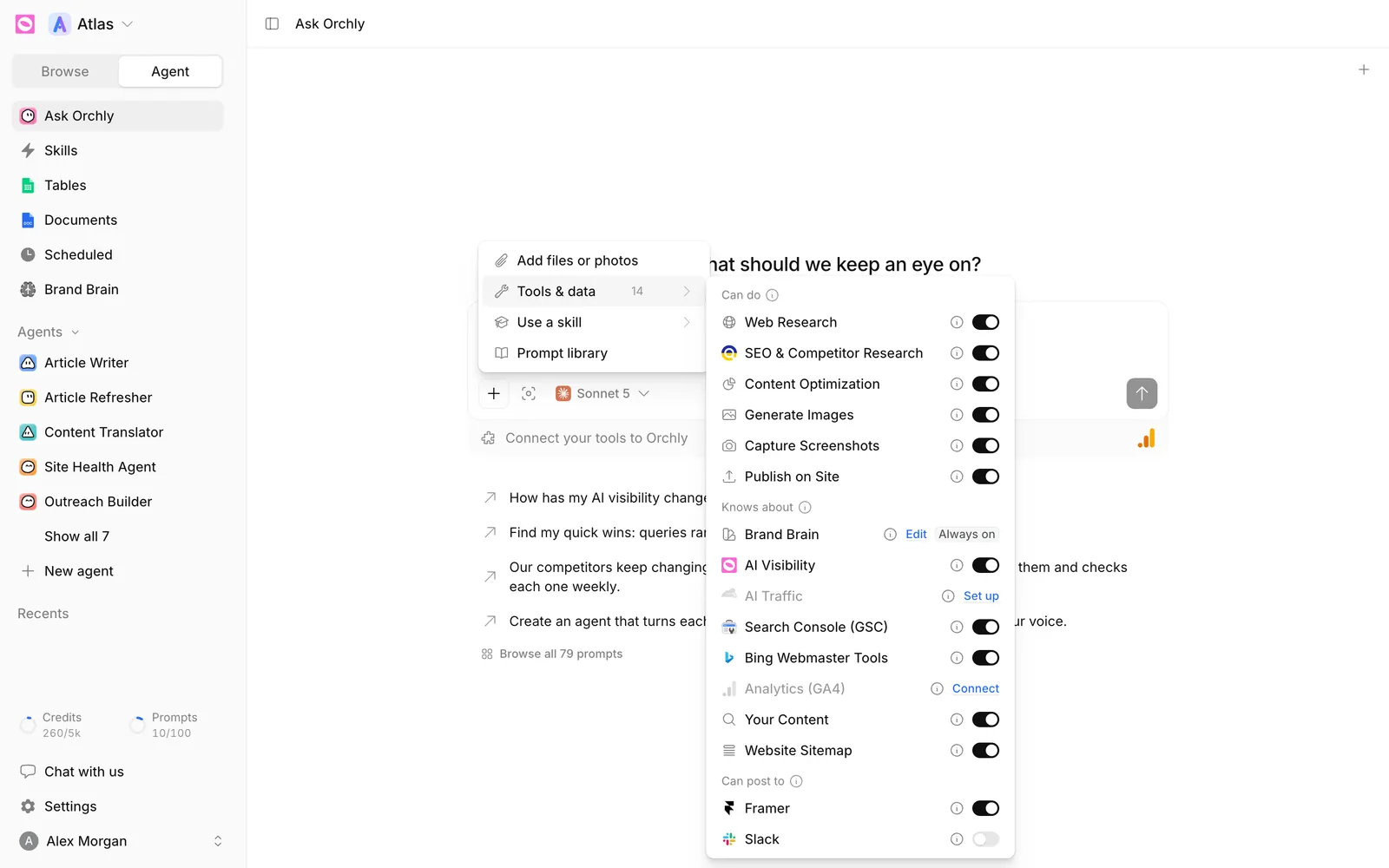
Slack also appears under Can post to in the chat composer’s Tools & data. Switch it on to let a one-off chat post to Slack.
What should I send to Slack?
Slack works best for updates people should see without opening a dashboard:
- A weekly AI visibility digest, like “Post the weekly AI visibility digest to #marketing”.
- An alert when a page drops out of the top 10.
- A daily summary of new AI citations.
- A heads-up when a draft is ready for review.
Put these on a scheduled agent and they post themselves. A Monday-morning share of voice recap in Slack keeps the whole team aligned.
Point recurring, low-effort updates at Slack and keep the review queue for work that needs a closer look. One tidy weekly post beats ten alerts nobody reads.
Troubleshooting
| Orchly says | What to do |
|---|---|
| ”This Slack workspace is not connected to Orchly any more.” | Reconnect Slack in Settings → Integrations. |
| ”I could not see your email address in Slack…” | Add an email to your Slack profile, or check your Slack admin hasn’t hidden it. |
| ”There is no Orchly account for…” | Sign up or get invited with that exact email. |
| ”…is not a member of the workspace this Slack is connected to.” | Ask an admin to add you to that Orchly workspace. |
| ”That one was already decided.” | Someone already clicked Approve or Deny on that card. |
To disconnect Slack, open its drawer in Settings → Integrations and click Disconnect.