How to give your AI agent tools and data access
Connect data sources and actions, from web search and Search Console to publishing and Slack, so your agent can actually get work done.
An AI agent in Orchly can only use the tools and data you give it access to. In the agent editor that’s split into three rows: Context is the data it can read, Abilities are the things it can do, and Apps are outside services like Slack. Add what the job needs and leave the rest off.
A few basics are always on and don’t appear in these rows, like saving a document for you to review.
Context: the data an agent can read
Click Add context in the agent editor to pick from:
| Source | What the agent gets |
|---|---|
| Brand Brain | Your facts, voice, audience and priorities, to stay on brand |
| Brand Brain search | Searches Brand Brain and its files, so it writes from what you actually said |
| Website Sitemap | Your site’s pages, so it can find internal links and gaps |
| Your Content | Searches your own pages to see what you already cover |
| Search Console (GSC) | Your Google clicks, impressions and rankings |
| Bing Webmaster Tools | Your Bing search data |
| Analytics (GA4) | Your Google Analytics traffic and conversions |
| AI Visibility | How your brand shows up in ChatGPT, Perplexity, Google AI Overviews and other AI answers |
| AI Traffic | Visits to your site from AI search engines |
Search Console, Bing and GA4 need to be connected first. If one isn’t, the agent shows an amber Connect tag on that source, and it can’t read the data until you connect it. See connect Search Console, connect Google Analytics 4 and Bing Webmaster Tools.
Abilities: what an agent can do
Abilities come as six bundles. Click Add ability to add one, and the agent gets every tool inside it.
- Web Research: “Search the web and read pages.” Includes Web Search and Web Page Scrape.
- SEO & Competitor Research: keyword ideas, backlinks, competitor gaps and SERP checks, powered by DataForSEO. Includes Keyword Research, Backlink Data, Domain Analysis, Keyword Gap and SERP Snapshot.
- Content Optimization: builds the brief a page needs to rank and scores drafts against it.
- Generate Images: creates on-brand images, matching covers to your reference cover images.
- Capture Screenshots: takes real screenshots of pages and product UIs to use as images.
- Publish on Site: “Publish to your CMS and apply on-page fixes.” Needs a connected CMS.
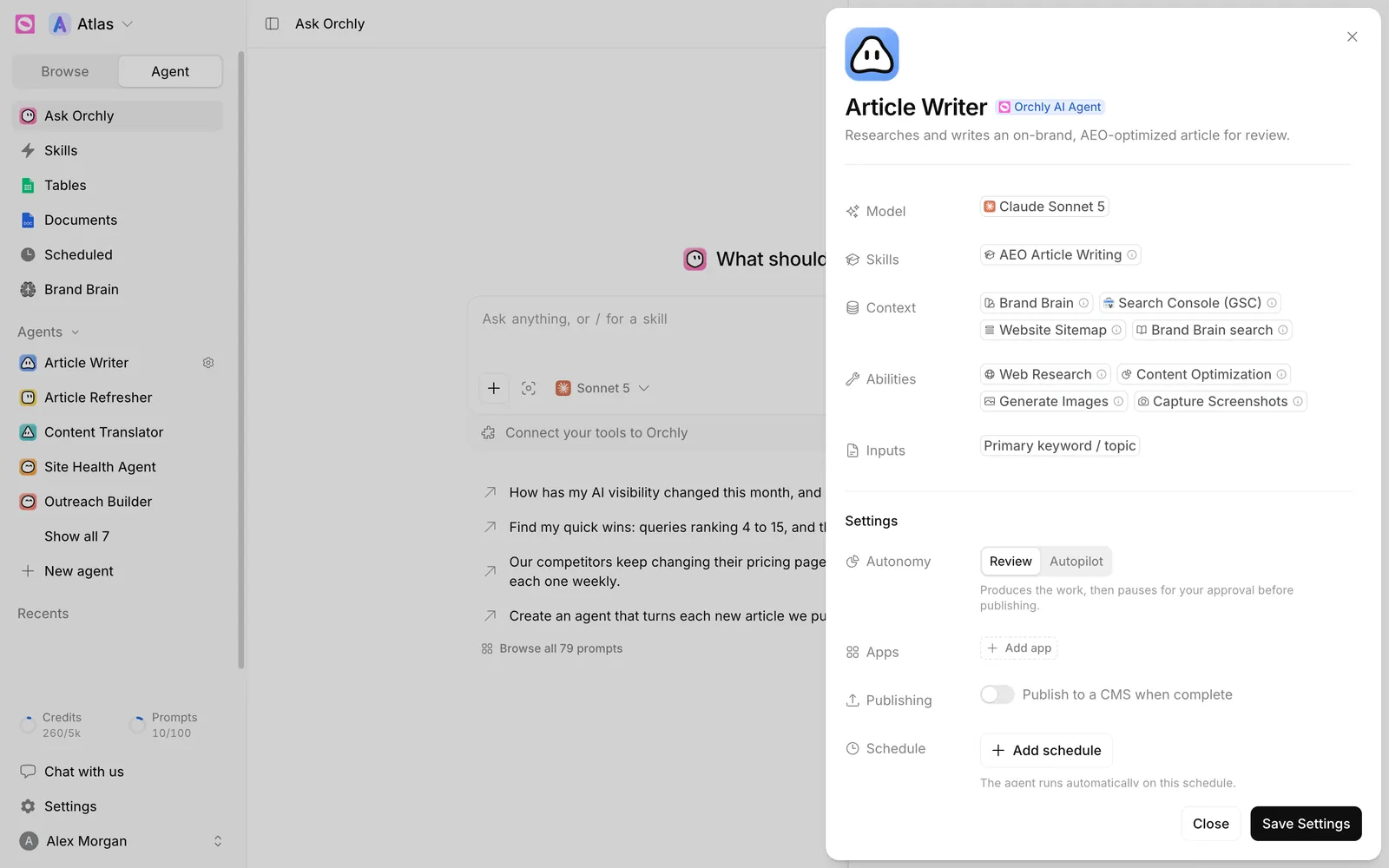
Apps: Slack
The Apps row is where you add Slack, so the agent can send messages and alerts. Click Add app, choose Slack, and set a Channel, which is where messages go by default. Slack has to be connected first. See connect Slack.
Change an AI agent’s tools for one chat
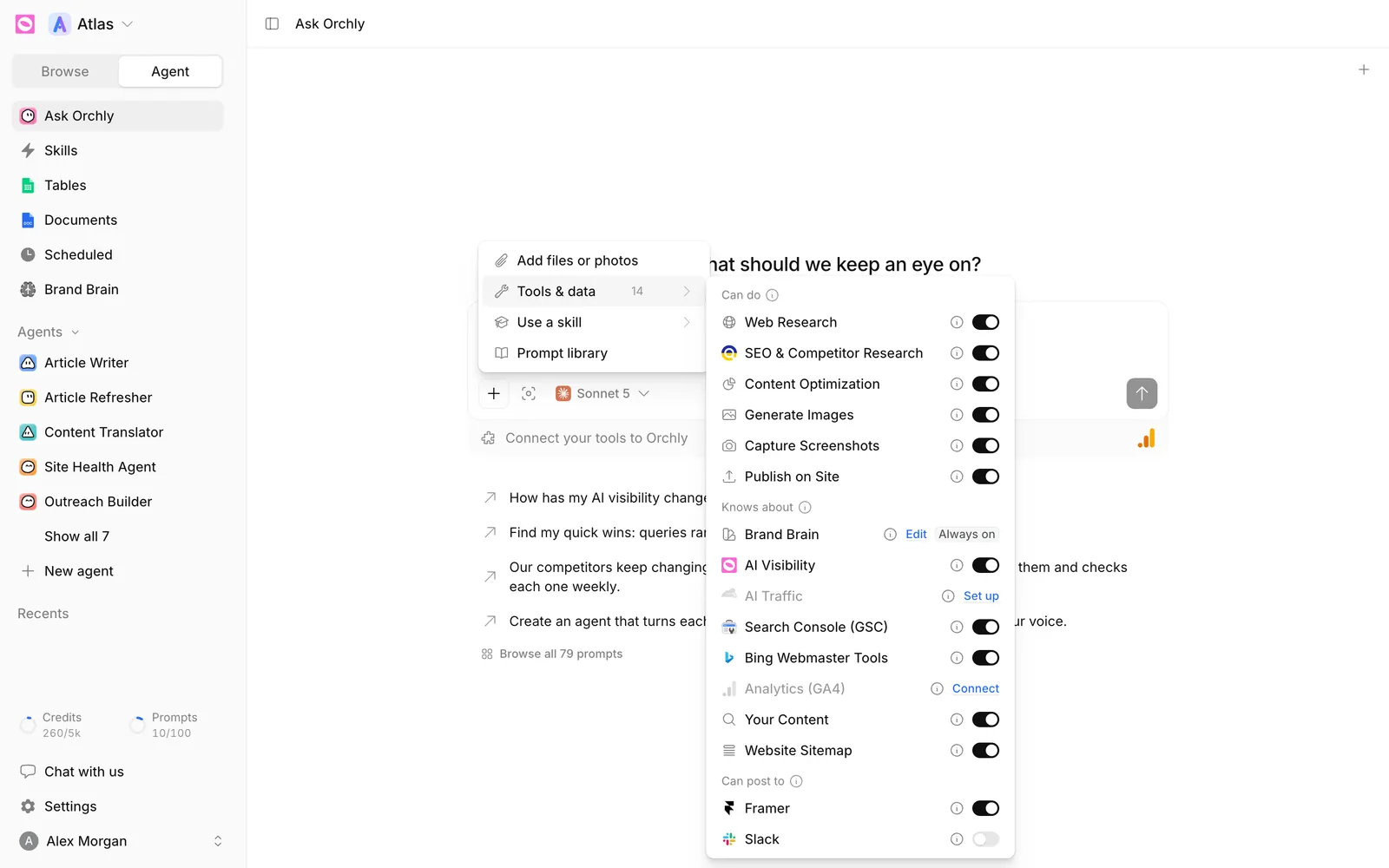
In Ask Orchly or any agent chat, open + → Tools & data. You’ll see the same things in three groups: Can do (abilities), Knows about (context) and Can post to (your CMS and Slack).
Switch a tool on here and it gets an amber This chat badge. The change lasts for that conversation only. The agent’s saved setup doesn’t change.
How many tools should an agent have?
As few as the job needs. A focused agent is more predictable, and it has fewer ways to wander off.
| Job | Context | Abilities |
|---|---|---|
| Write articles | Brand Brain, Search Console, Website Sitemap | Web Research, Content Optimization, Generate Images |
| Refresh decaying pages | Search Console, Your Content, AI Visibility | Web Research, Content Optimization |
| Weekly visibility report to Slack | AI Visibility, AI Traffic, Search Console | None, plus Slack under Apps |
| Competitor research | Brand Brain | Web Research, SEO & Competitor Research |
Check its tools first. If you asked it to publish and it didn’t, it probably doesn’t have Publish on Site, or your CMS isn’t connected. If it ignored your Search Console data, check for a Connect tag on that source.
What happens when an agent uses a tool?
Reading data and researching never wait for approval. Tools that publish, post to Slack or change your live site ask first in chat, and follow the agent’s Autonomy setting on scheduled runs. See what needs your approval.
Next, decide when the agent runs and where the output goes: triggers and schedules and publish agent output.