How to track organic traffic from Search Console and GA4
Track clicks, impressions, CTR and position from Search Console, sessions and revenue from GA4, and Bing data, all in one dashboard.
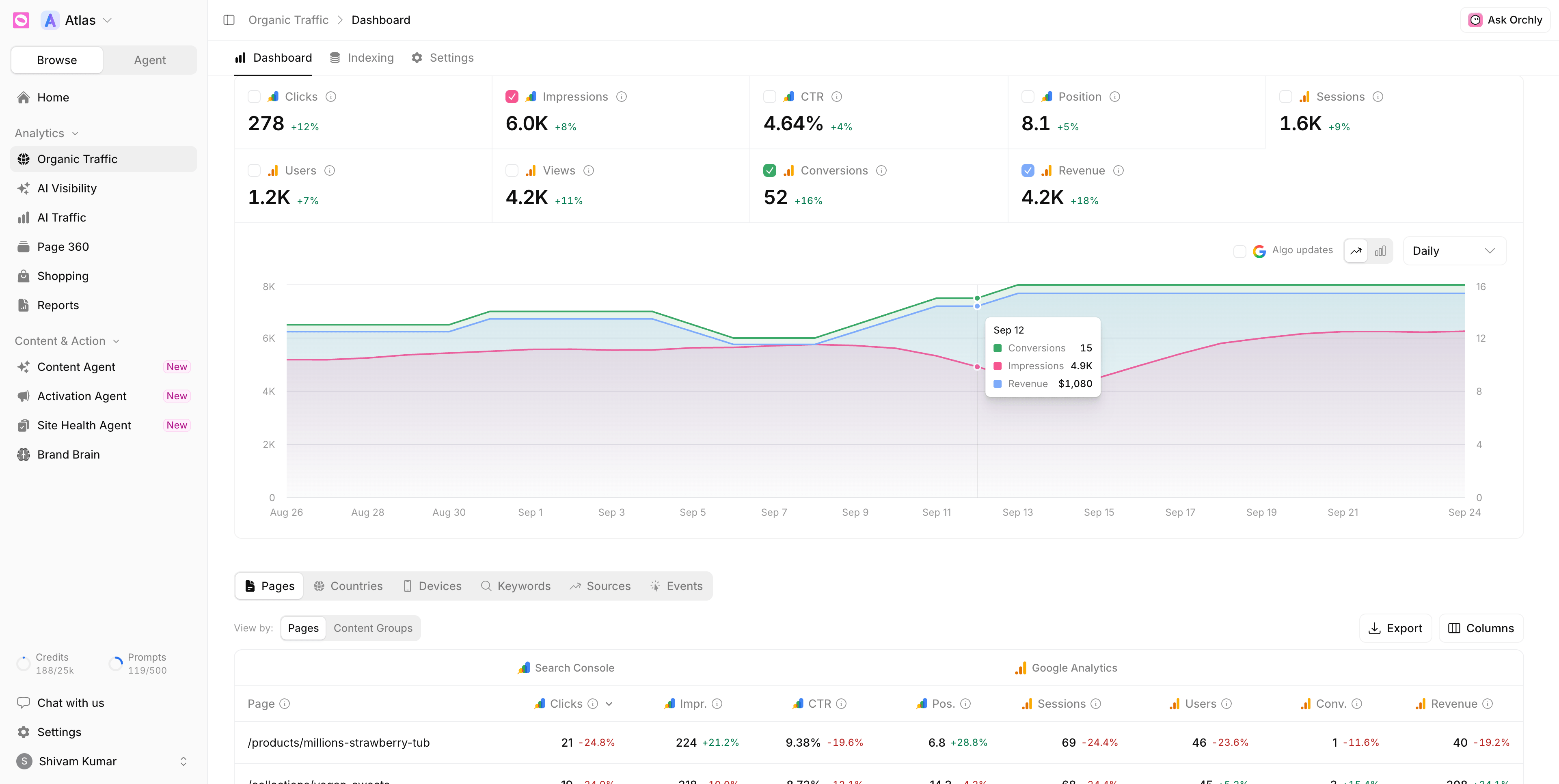
To track organic traffic from Search Console and GA4, open Organic Traffic. The dashboard puts your Google Search Console, Google Analytics 4 and Bing Webmaster Tools data in one place. Clicks, impressions, CTR and average position sit next to sessions, conversions and revenue, with the keywords and pages behind them underneath.
You’ll find it under Analytics → Organic Traffic in the sidebar, on the Dashboard tab. The other two tabs are Indexing and Settings.
Pick your data source
The source picker at the top switches between four views:
| Source | Answers | Breakdown tabs |
|---|---|---|
| Search Console | What people searched to find you | Keywords, Pages, Countries, Devices |
| Analytics (GA4) | What visitors did once they arrived | Pages, Sources, Channels, Countries, Devices, Events |
| Bing | How you perform in Bing search | Keywords, Pages |
| Search Console + Analytics | Both, side by side on one row | Pages, Countries, Devices, Keywords, Sources, Events |
Most people start with Search Console. Bing is worth a look too, since Bing’s index feeds Microsoft Copilot and ChatGPT search.
Haven’t connected a source yet? See connect Google Search Console, connect Google Analytics 4 and connect Bing Webmaster Tools. If the dashboard is empty or shows a banner, why the organic dashboard shows no data explains each state.
What do the organic traffic metrics mean?
The cards at the top show each metric with its change against the previous period. Search metrics come from Search Console (or Bing), traffic metrics from GA4, and each card shows the logo of its source.
- Clicks: how many people came through from search.
- Impressions: how often your pages showed up in search results.
- CTR: the share of impressions that turned into clicks.
- Position: your average ranking. Lower is better.
- Sessions, Users and Views: visits and people from GA4.
- Conversions and Revenue: the GA4 events and value those visits produced.
Tick a card’s checkbox to add it to the chart or take it off. Switch the chart between daily, weekly and monthly, and between an area and a bar view.
The Algo updates toggle marks known Google algorithm updates on your chart. If traffic moved on the same day as an update, that’s usually your answer, and it saves you a long hunt.
Filter branded vs non-branded traffic
In the Search Console view, a dropdown next to the date range lets you pick All traffic, Branded only or Non-branded. Non-branded is the truest read on your SEO growth, because it strips out people who already knew your name.
The split uses the terms you add under Settings → Branded Keywords. See branded vs non-branded keywords explained.
Break it down by keyword, page and more
The tabs under the chart slice the data. In the Search Console view, the Keywords table shows clicks, impressions, CTR and position per query.
Use View by to roll rows up:
- On Keywords (Search Console only), switch to Topic Clusters to see whole themes at once. See organize keywords into topic clusters.
- On Pages (Search Console, GA4 or the combined view), switch to Content Groups to see site sections. See group pages into content groups.
Filter narrows the data to a country, device, page or keyword, and Export downloads the table you’re looking at.
The Indexing tab next door tells you whether Google and Bing have actually indexed your pages. See how to check if a page is indexed by Google.
What to look for each week
- High impressions, low CTR. You rank, but the title and meta description aren’t earning the click.
- A page sliding in position. Catch it before the clicks drop off. Page 360 shows that page’s search, AI and Site Health data on one row.
- Keywords stuck on page two (positions 11 to 20). A modest content update often pushes them onto page one. The Content Agent suggests these refreshes for you.
- Non-branded flat while total grows. Your brand is doing the work, not your SEO.