How to create white label SEO reports
Add your own logo and organization name so every shared report is presented by your agency, not Orchly.
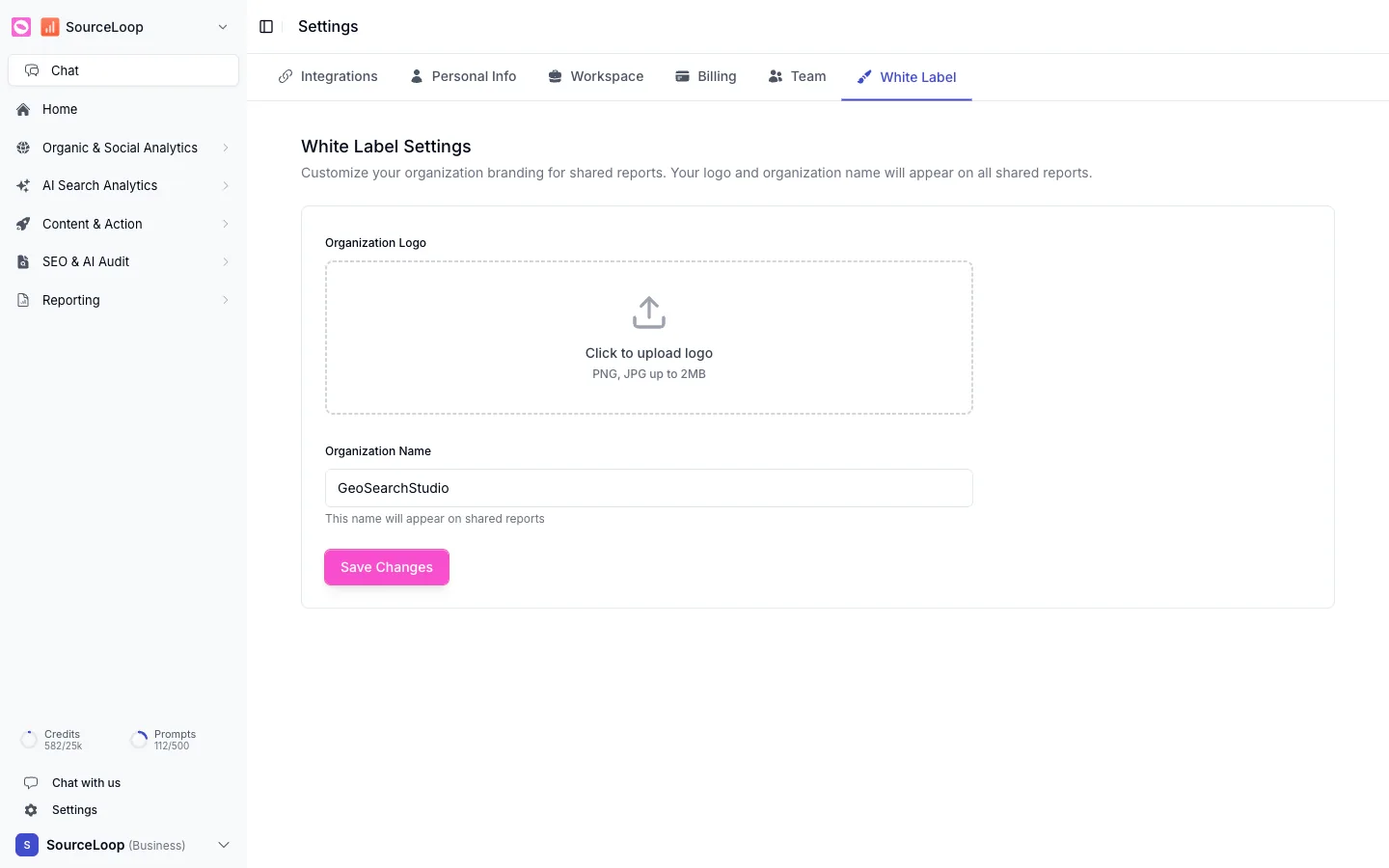
White label SEO reports in Orchly carry your agency’s logo and name instead of Orchly’s on every report you share with clients. Open Settings, click White label under Workspace, add your logo and organization name, and click Save changes. Every shared report picks it up from then on.
It’s built for agencies sending AI visibility and SEO reports to clients who’ve never heard of Orchly and don’t need to.
How do I set up white label SEO reports?
The Branding section has two settings:
- Logo. Click Upload logo and pick a PNG or JPG, up to 2MB. A transparent background works best, since the logo sits on the report cover.
- Organization name. Your agency’s name. It’s shown as “Presented by” on the report cover.
Click Save changes. The branding applies to every shared report once saved, including ones you shared before.
How do I check what clients will see?
The Preview card, marked Live, shows the cover of a shared report as your clients will see it. It updates as you add your logo and name, so you can check how the logo looks before you save.
If you haven’t added anything yet, the preview reads “Add a logo or name to brand the cover”.
Covers are short and wide. A horizontal logo with a bit of space around it reads better than a square icon cropped tight.
Where does white-label branding show up?
On your shareable reports: the report link you send a client, and the PDF you download from the report list. That covers the monthly AI visibility, organic search and social listening reports most agencies send.
It doesn’t change the Orchly app itself. Your team and any client you invite into a workspace still see Orchly.
Does white label apply to every workspace?
Yes. White-label branding is set once for your whole organization, so it covers reports from every workspace, and every client, you manage. You don’t need to set it up again per workspace.
The report title still uses each workspace’s own name, so a client sees their brand on the cover, presented by your agency.
Add your logo and name before you send a client anything. It takes a minute and every report after it looks like your agency’s work.
Related
- How to create and share reports
- How to invite your team, including giving a client access to just their own workspace
- Workspace settings for each workspace’s name and logo inside the app