ChatGPT Shopping: track your product visibility
See how often ChatGPT and other AI assistants recommend your products, at what price, from which merchants, and which rivals win instead.
Shopping visibility shows if your products make the shortlist in ChatGPT Shopping and other AI assistants when someone asks “what are the best noise-cancelling headphones?” You’ll find it under Analytics → Shopping in the sidebar. It shows which products AI recommends, where they rank, the prices AI quotes, and the merchants it sends buyers to.
Shopping is included on the Pro and Business plans.
Before you start: import your catalog
Shopping needs to know which products are yours. Until you add them, the page shows an Add your products card. You can fetch a Shopify store or upload a CSV or Merchant Center feed, and it takes a couple of minutes. See how to import your product catalog.
Shopping data comes from your tracked prompts. It fills in once prompts with buying intent run and the models answer in shopping mode. Until then you’ll see Waiting for your first shopping answers.
Prompts like “best running shoes under $150” trigger shopping answers far more often than “how do running shoes work”. If your prompt set is mostly informational, add some product-comparison prompts. Research prompts with Orchly AI can find them.
The four shopping tabs
- Brands: your share of AI shopping answers against rival brands.
- Merchants: which retailers AI offers as places to buy.
- Products: every product AI names, with visibility, rank and price.
- Prompts: which questions trigger shopping answers at all.
The toolbar filters every tab by topic, tags, branding, intent, platform and date. Topics aren’t on the Prompts tab, since it has its own topic list.
Brands: your AI shopping scoreboard
The Brands tab opens with three numbers and a trend chart. Pick Daily, Weekly or Monthly for the chart.
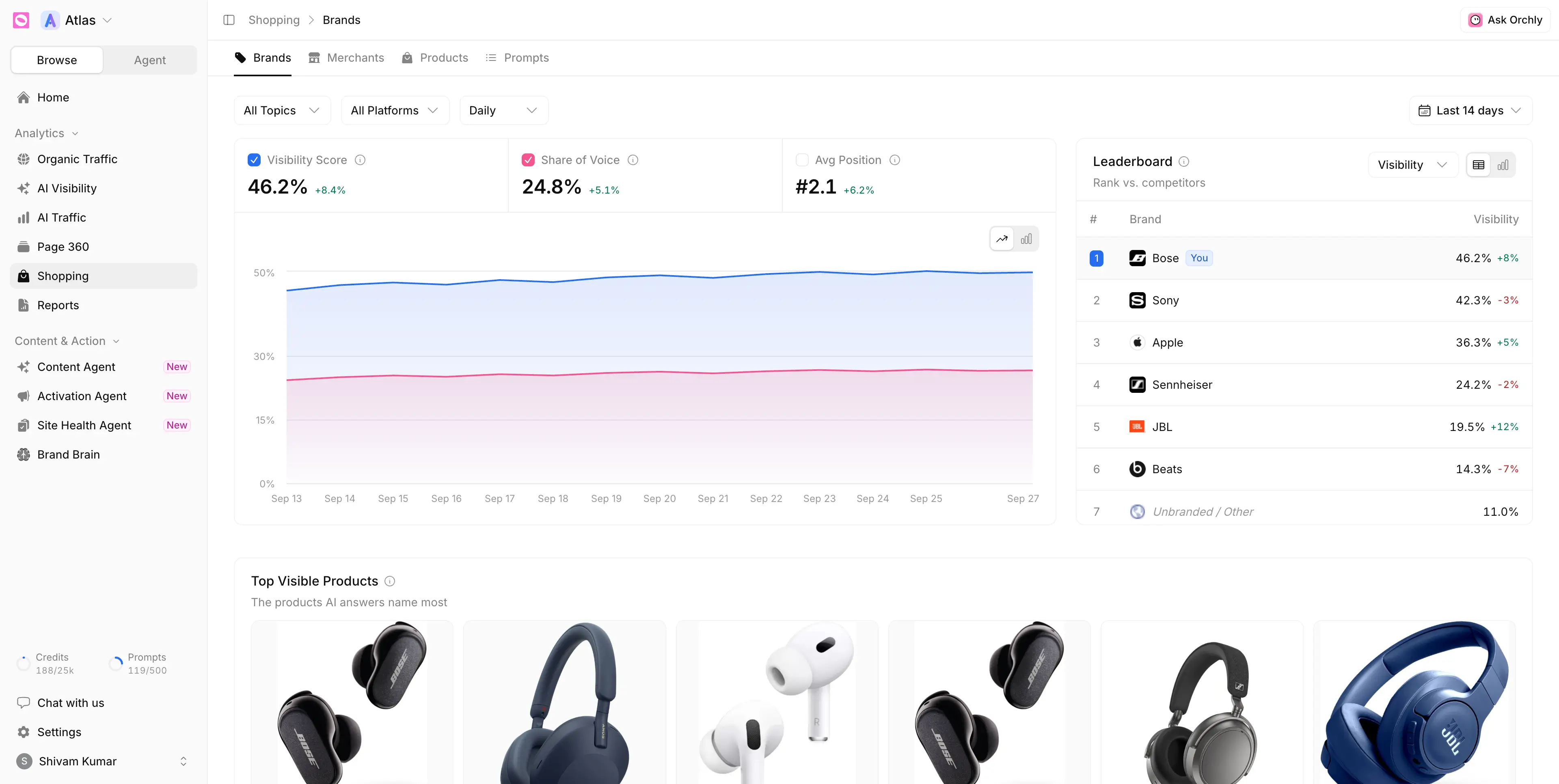
- Visibility Score: how often your products appear in shopping answers.
- Share of Voice: your share of all product appearances in the period.
- Avg Position: the average card slot your products land in. 1 is first, so lower is better.
The Leaderboard ranks you against competitors by visibility, position or share of voice, with your brand tagged You. Further down you’ll find:
- Top Visible Products: the products AI names most, with Appearances and Avg Position.
- Position Frequency: how often each brand lands in each card slot.
- Shopping Mode Rate: the share of prompt runs that came back with a shopping carousel, over time.
- Top Visible Brands, broken down by platform, topic or prompt.
Merchants: where AI sends buyers to check out
The Merchants tab shows the retailers AI offers as checkout options: Amazon, Best Buy, Walmart, your own store and so on.
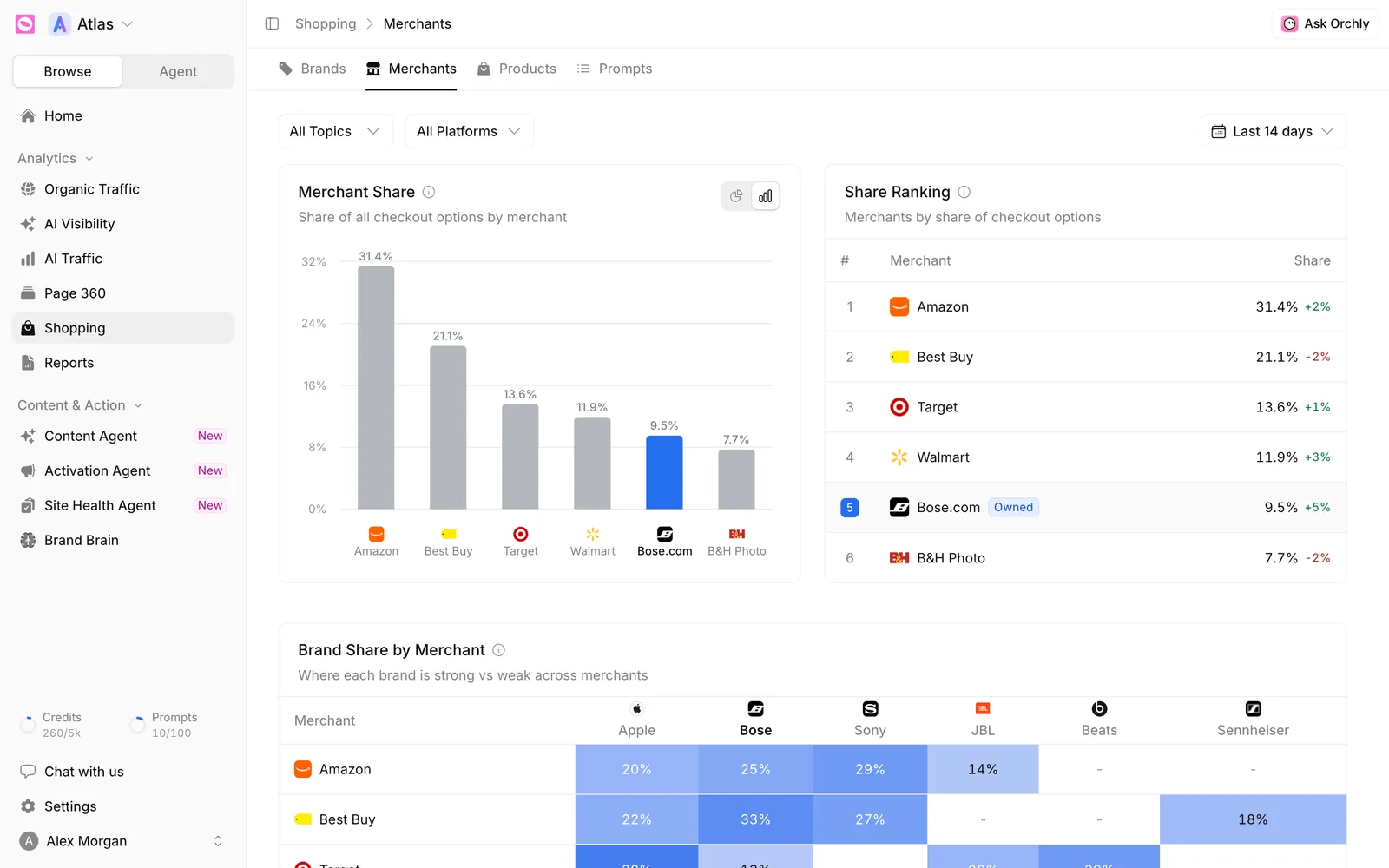
- Merchant Share charts each retailer’s share of all checkout options.
- Share Ranking ranks merchants by that share. Your own store is tagged Owned.
- Brand Share by Merchant is a grid of brands against merchants, so you can see where you’re strong and where a rival dominates.
A low Owned share means AI sends buyers to marketplaces rather than to you. That’s worth fixing if direct sales matter to your margins.
Products: visibility, win rate and price per product
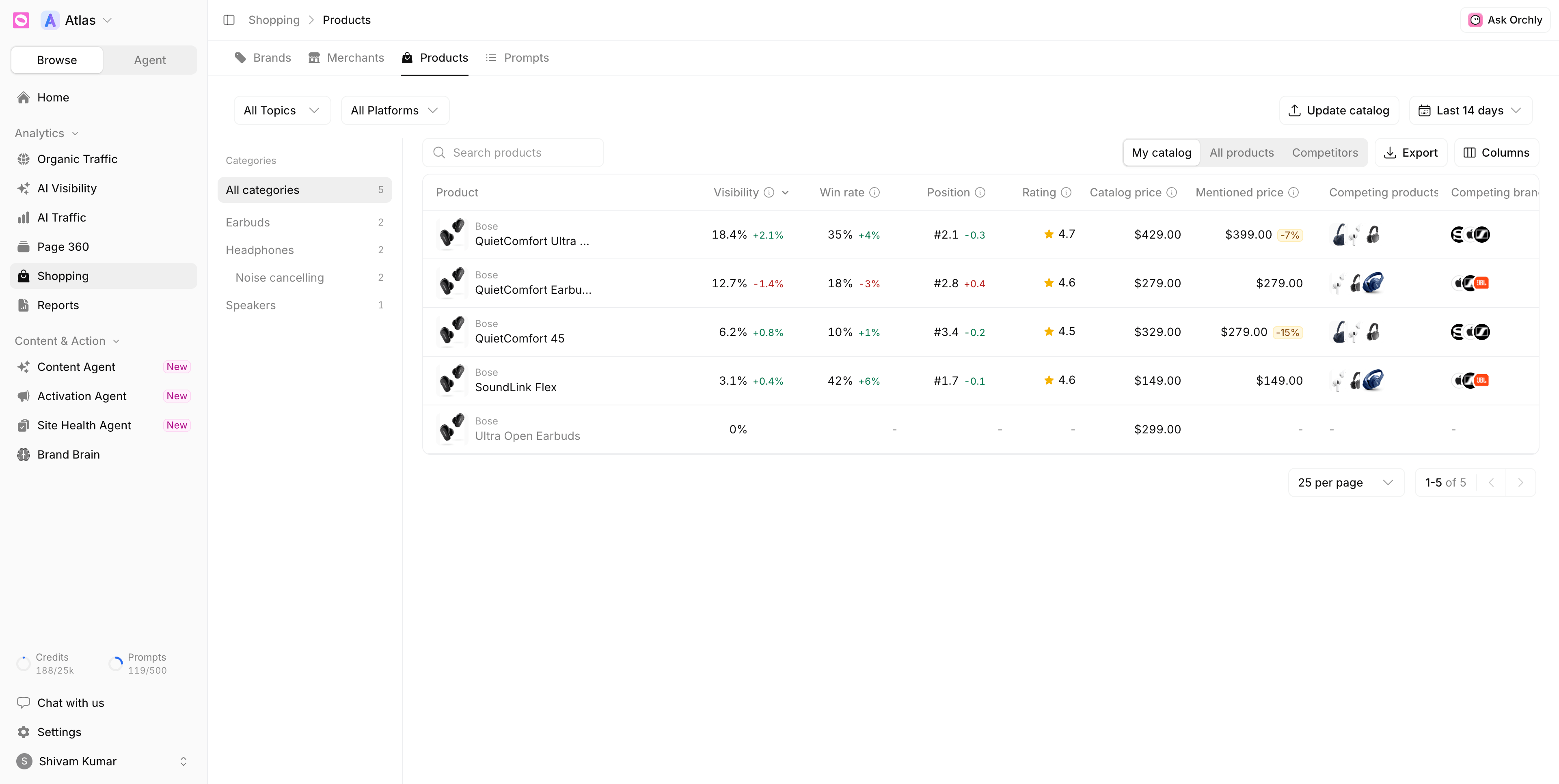
The Products tab lists every product AI names. The Categories rail on the left filters by your catalog categories. A switch at the top picks My catalog, All products or Competitors, and Export downloads the list.
| Column | What it shows |
|---|---|
| Visibility | Share of AI answers in scope that name the product |
| Win rate | How often it’s the top recommendation when named |
| Position | Average rank among the products in an answer |
| Rating | The star rating AI shows or quotes |
| Catalog price | The price in your catalog |
| Mentioned price | The average price AI quotes |
| Appearances | Answers that named it |
| Competing products / Competing brands | What it shares answers with most |
| Top fan-out query | The web search AI ran most often before naming it |
A product with 0% visibility is in your catalog but AI never named it in the period. Those are the gaps to work on.
Spot price mismatches
Mentioned price is flagged when it differs from your Catalog price by 5% or more, with the difference shown next to it (for example, -7%).
A mismatch usually means AI is quoting a sale price, an old price, or a reseller’s price. Check the product’s Merchants and Sources in the drawer to find where the number comes from, then fix that page or feed.
The product drawer
Click any product to open its drawer. The header shows Your catalog or Competitor, its category, and a Product page link.
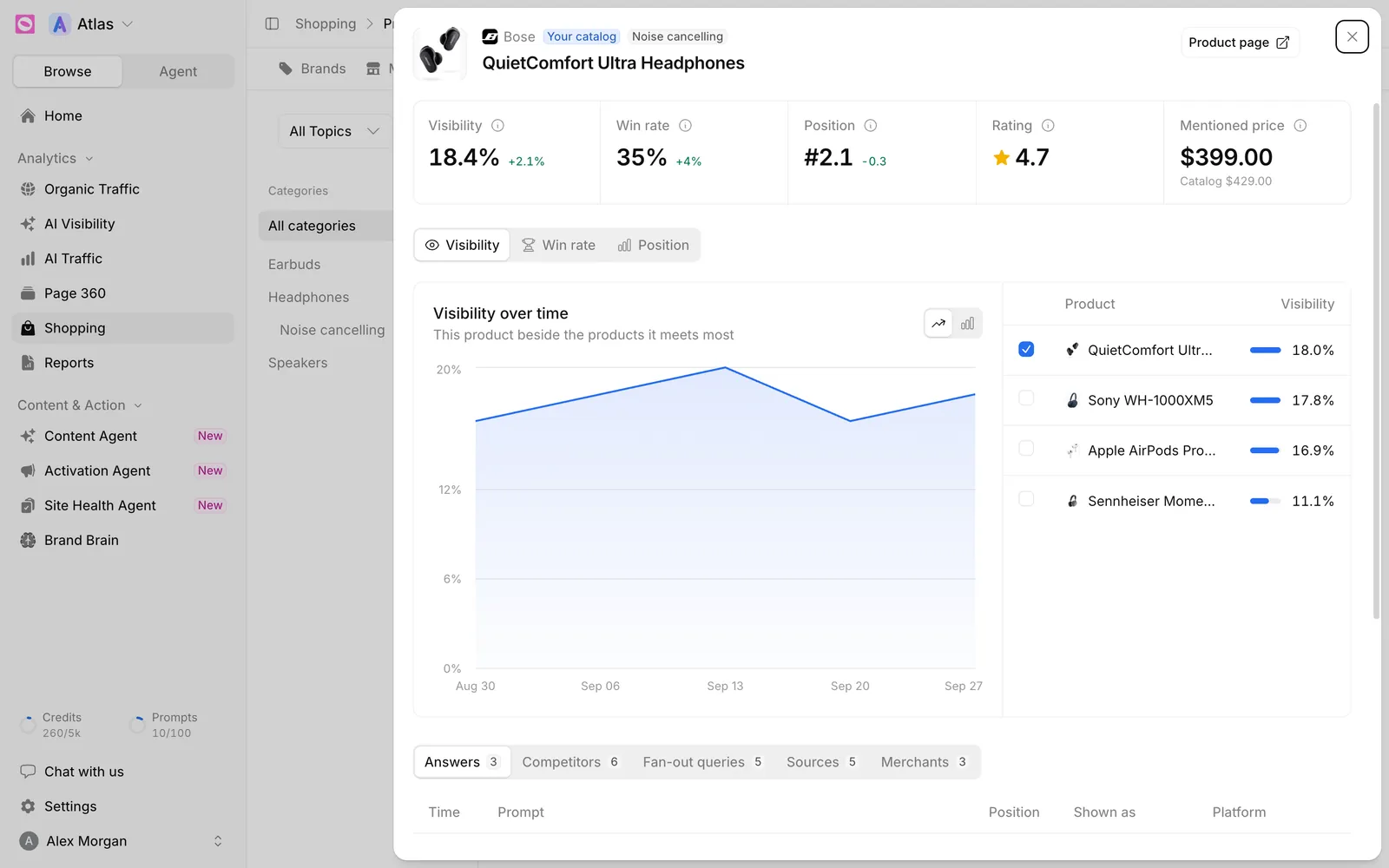
Five stat cards (Visibility, Win rate, Position, Rating and Mentioned price with the catalog price under it) sit above a chart. Switch the chart between Visibility, Win rate and Position to compare the product with the products it meets most.
The tabs underneath break it down:
- Answers: every answer that named it, with the prompt, position, platform and Shown as (In the answer, Shopping card or Answer and card). Click a row to read the full response.
- Competitors: Competing products and Competing brands, and how often each ranks above this one.
- Fan-out queries: the web searches AI ran before naming it. More on these in query fan-out.
- Sources: the pages AI cited.
- Merchants: each retailer offering it, with the Price quoted and a Visit link.
Prompts: which questions trigger ChatGPT Shopping results
The Prompts tab lists your tracked prompts with a Topics rail and a Group by prompt / Group by topic switch. The columns that matter most:
- Mode Rate: the share of this prompt’s runs that triggered shopping mode.
- Shopping Runs: runs that came back with a shopping carousel.
- Visibility: how often your products appear in those shopping answers.
- Products: product cards returned across its shopping answers.
A prompt with a high Mode Rate reliably pulls product recommendations. If your Visibility there is low, that’s a buyer ready to purchase who isn’t seeing you. Filter by tags to focus on your key product lines.