How to build a brand knowledge base for AI
Brand Brain holds the facts, competitors and priorities every agent works from, and the facts Orchly checks AI answers against.
Your brand knowledge base in Orchly is Brand Brain: the facts, competitors and priorities every AI agent reads before it writes or recommends anything. Onboarding fills most of it from your website, so your job is to check it, correct it and add what a website can’t say.
Open Brand Brain from the sidebar. It’s under Content & Action in Browse mode, and in the Agent sidebar too.
Brand Brain is also the source of truth Orchly uses to fact-check what ChatGPT, Perplexity and Google AI Overviews say about you. Wrong facts here mean wrong content and missed errors.
What’s in a brand knowledge base for AI?
Brand Brain has an Overview, then four groups:
| Group | Sections | What goes there |
|---|---|---|
| Brand | Company, Competitors, Products, Audience, Strategy | Who you are, who you compete with, what you sell, who buys it, what matters now |
| Voice | Tone & guidelines, Visual identity | How you write and how your images look. See brand voice guidelines |
| Knowledge | Files & links, Website | Docs and pages agents search. See how to train agents on your docs |
| You | Personal | How you like to work. Only you and your agents see it |
During setup, Orchly reads your key pages and drafts the About text, facts for Company, Products and Audience, your tone, and your brand colours. Strategy is left empty on purpose. Only you know what matters this quarter.
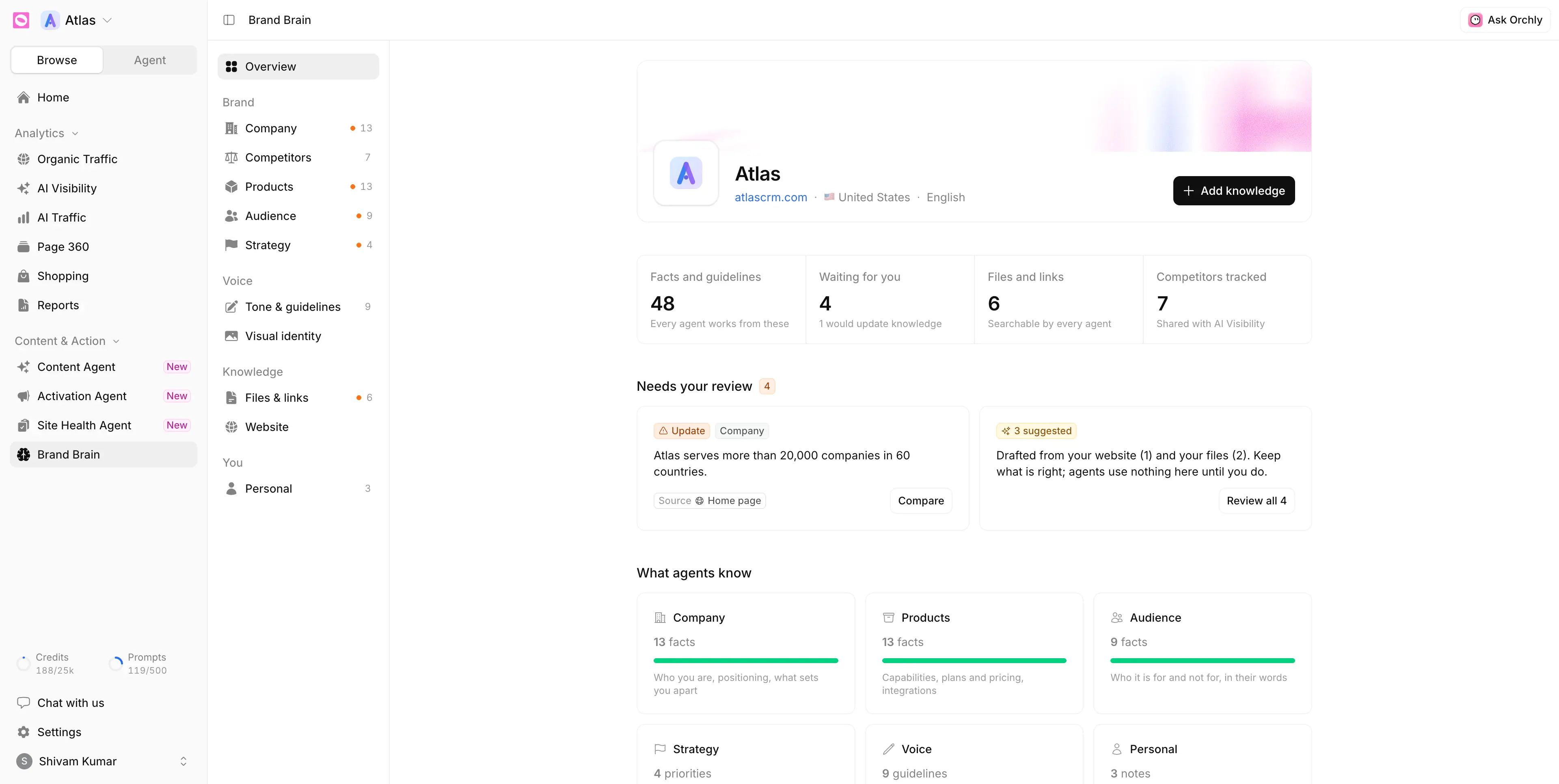
On the Overview, What agents know lists each section with a count and a coverage bar. Anything labelled Empty or Thin is the next thing to add.
How to review what Brand Brain learns
Facts drafted from your files and website wait in Needs your review on the Overview. Agents don’t use any of them until you keep them. The section holds three kinds of card:
| Card | What it means | Button |
|---|---|---|
| Update | A new claim that disagrees with something agents use now | Compare |
| N suggested | New facts drafted from your website or files | Review all N |
| Gap | A section with nothing in it, so agents guess | Add priorities or Add company facts |
Click Review all to open the dialog. Each row shows the statement, a source chip (like Home page, /customers or a file name) and the section it would land in. Click Keep or Dismiss, or settle the whole list with Keep all or Dismiss all.
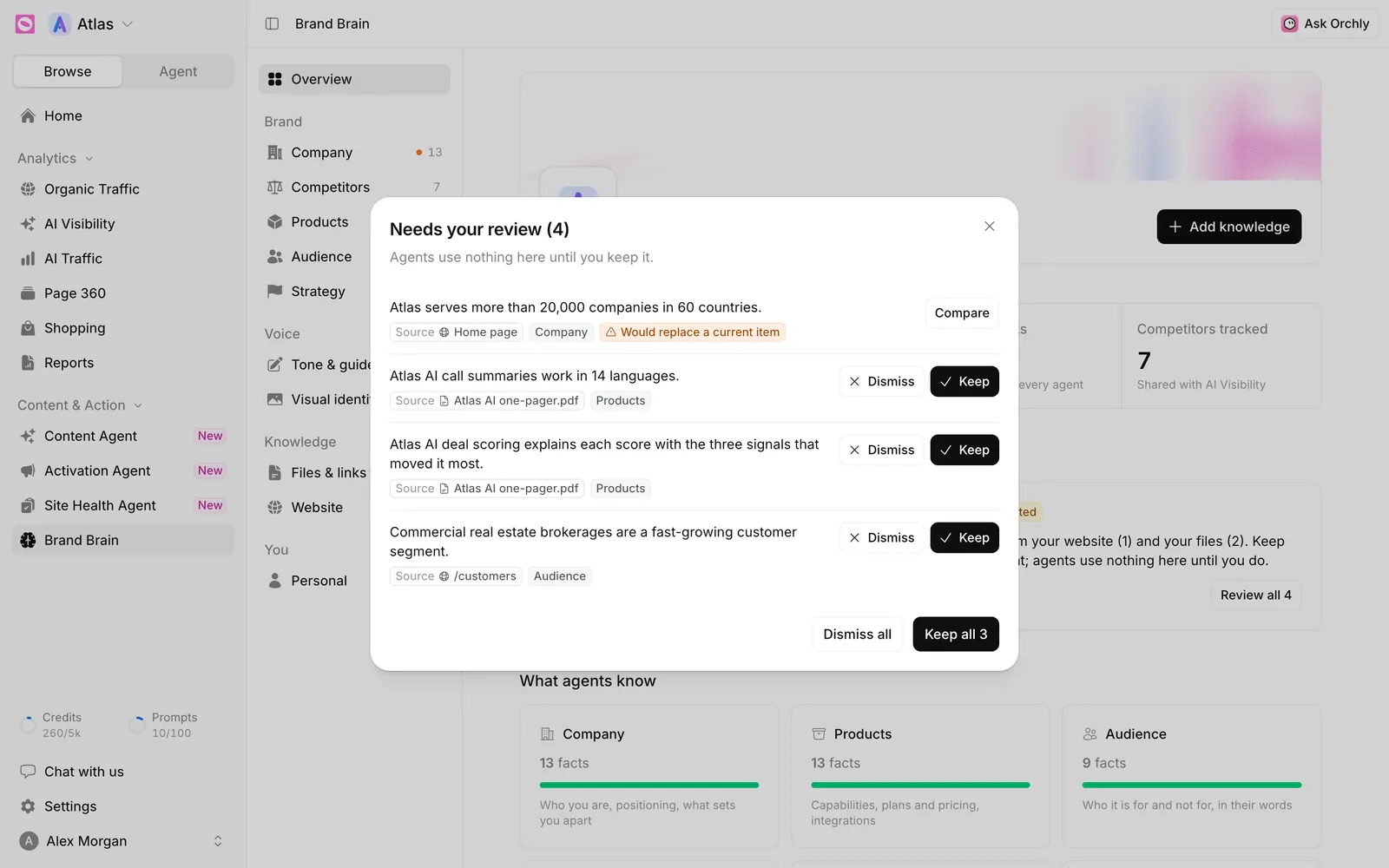
Settle a conflict with Compare
An orange Would replace a current item badge means a new claim can’t be true alongside a fact you already have, like a different price or customer count. Click Compare to open Which is right? and see both, each with its source and quote. Then pick:
- Keep this on the correct one. The other stays in history.
- Both are true, keep both when they don’t really clash, like prices for two regions.
- Decide later to leave it in the queue.
Old numbers on your own site are a common reason AI answers get facts wrong. If Compare shows your site still says last year’s figure, keep the right fact here, then fix the page.
Suggestions also show inline in each section with a Suggested badge and Keep, Edit and Dismiss buttons. An orange dot next to a section in the Brand Brain menu means something there needs attention.
Keep a suggestion when it’s specific, current and something you’d tell a customer. “Starter is $19 per user per month” helps. “Affordable pricing” doesn’t, and “the fastest CRM” is an opinion agents will repeat.
Edit your company profile and About card
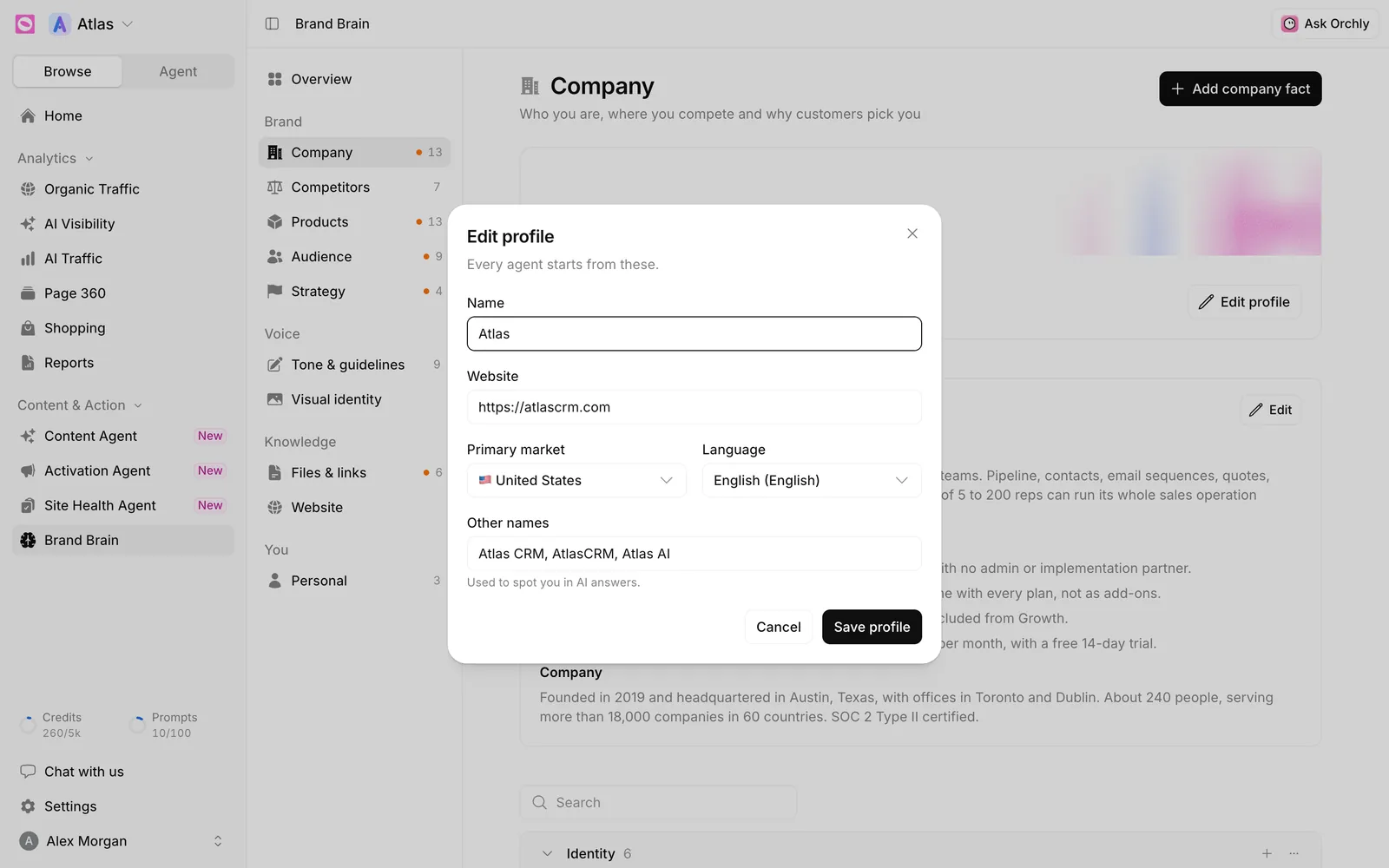
The top of Company shows your banner. Click Edit profile to change it:
- Name and Website.
- Primary market and Language, so agents write for the right country in the right language.
- Other names, comma-separated, like “Atlas CRM, AtlasCRM”. The hint says “Used to spot you in AI answers.” If ChatGPT calls you by a nickname or old product name, add it so those mentions count toward your AI visibility.
Click Save profile.
Below it sits About. Its tip says “Every agent reads this first,” and it’s the summary at the top of every agent’s brief. Click Edit and tighten what onboarding wrote: what you are, who it’s for, and why teams pick you.
How to add company, product and audience facts
| Section | What it holds | Good examples |
|---|---|---|
| Company | Who you are and why customers pick you | Founding year, customer count, certifications |
| Products | What you sell, what it costs, what it connects to | Plans and prices, features, limits, integrations |
| Audience | Who you serve, who you don’t, how they talk | Company size, job titles, problems in their words |
- Click Add company fact, Add product fact or Add audience fact at the top right.
- Type one fact per line.
- Click the add button. Each line becomes its own item.
Every item shows a source chip: Website, File, Conversation, Setup, You or Brand profile. Click a fact to edit it in place. Its menu has Edit, Move to group, Turn off (keep, agents ignore it) and Delete. Click New group to sort long lists into groups like “Plans and pricing”. Past 12 items, a search box appears.
What is the “What you sell” card?
Products opens with What you sell. Content suggestions are judged against it: each suggested article has to sell one of your offers and link to its page. Click Edit to fill in your Offers (name, description, page), What makes someone a customer and Where that happens, Who buys, and What you do not offer. Anything in that last list is never suggested. See how to generate content ideas.
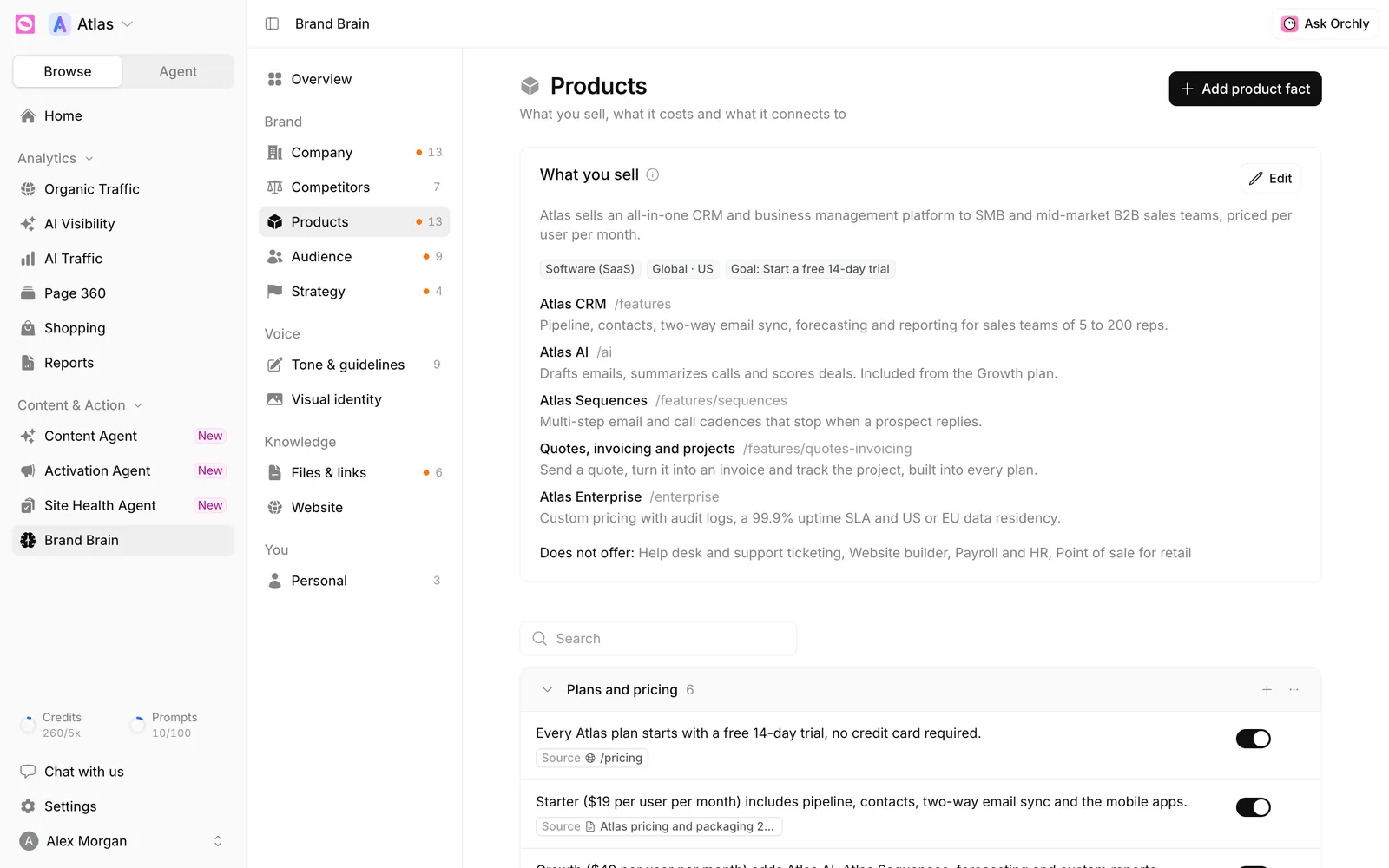
The “Use to fact-check AI answers” switch
Each fact has a Use to fact-check AI answers switch, on by default. When it’s on, Orchly compares AI answers with that fact, and Perception > Fact check in AI Visibility counts how many answers contradict or support it. Only Company and Products facts are checked.
Turn it off for facts that change often, like a limited-time offer. The fact still guides agents.
How to add and manage competitors
There’s one competitor list per workspace, shared with AI Visibility > Settings > Competitors. It drives your leaderboard, share of voice and Performance Matrix (see how to compare competitor AI visibility), plus who AI names first in Perception.
- Go to Competitors and click Add competitor.
- Fill in Name and Domain (required). Optionally add Other names, like “Hub Spot, HubSpot CRM”, and Other domains, like blog.hubspot.com.
- Click Add another for more rows, then save. The button counts them, like Add 3 competitors.
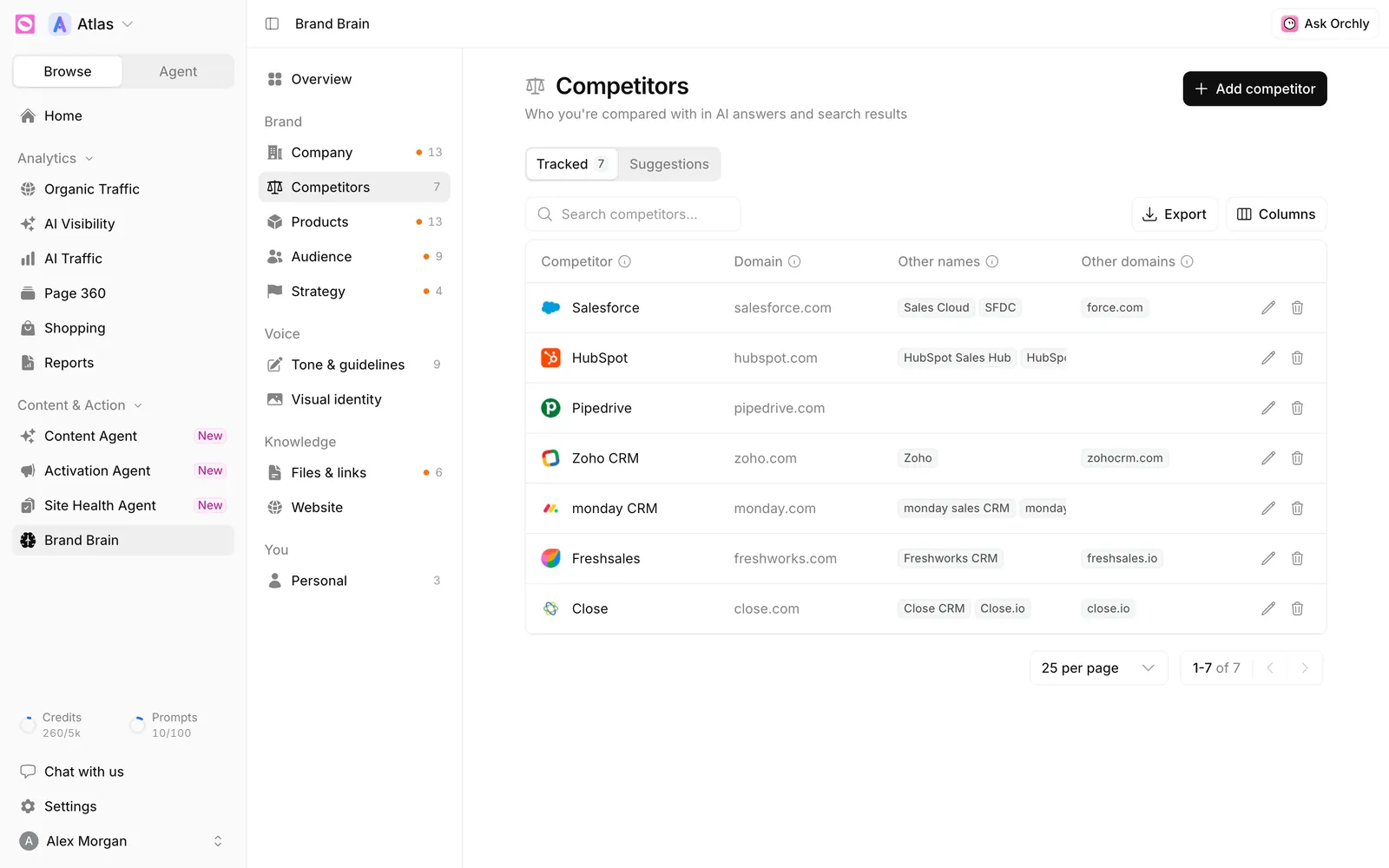
The Suggestions tab lists brands that appear in your tracked AI answers but aren’t on your list, with Mentions (30d). Click Track to add one. This is often where you find your real competition in AI search.
To edit, click the pencil and Save changes. Deleting “will remove the competitor from all tracking across AI visibility and organic ranking.” Start with the three to eight brands you actually lose deals to.
How to set strategy priorities
Company and Products tell agents what’s true. Strategy tells them what to push or hold back right now. Until you fill it, the Overview shows a Gap card, because every plan agents make is generic.
- Open Strategy and write a few lines, or paste a plan. For example: “Agencies are our main growth channel this quarter. Push the Professional plan, not Essential.”
- Click Turn into priorities.
Orchly splits it into ordered priorities, keeps your wording, and turns dates you mention into review dates. Each row shows a Review date, badges for Steers recommendations or Steers content, and a source chip.
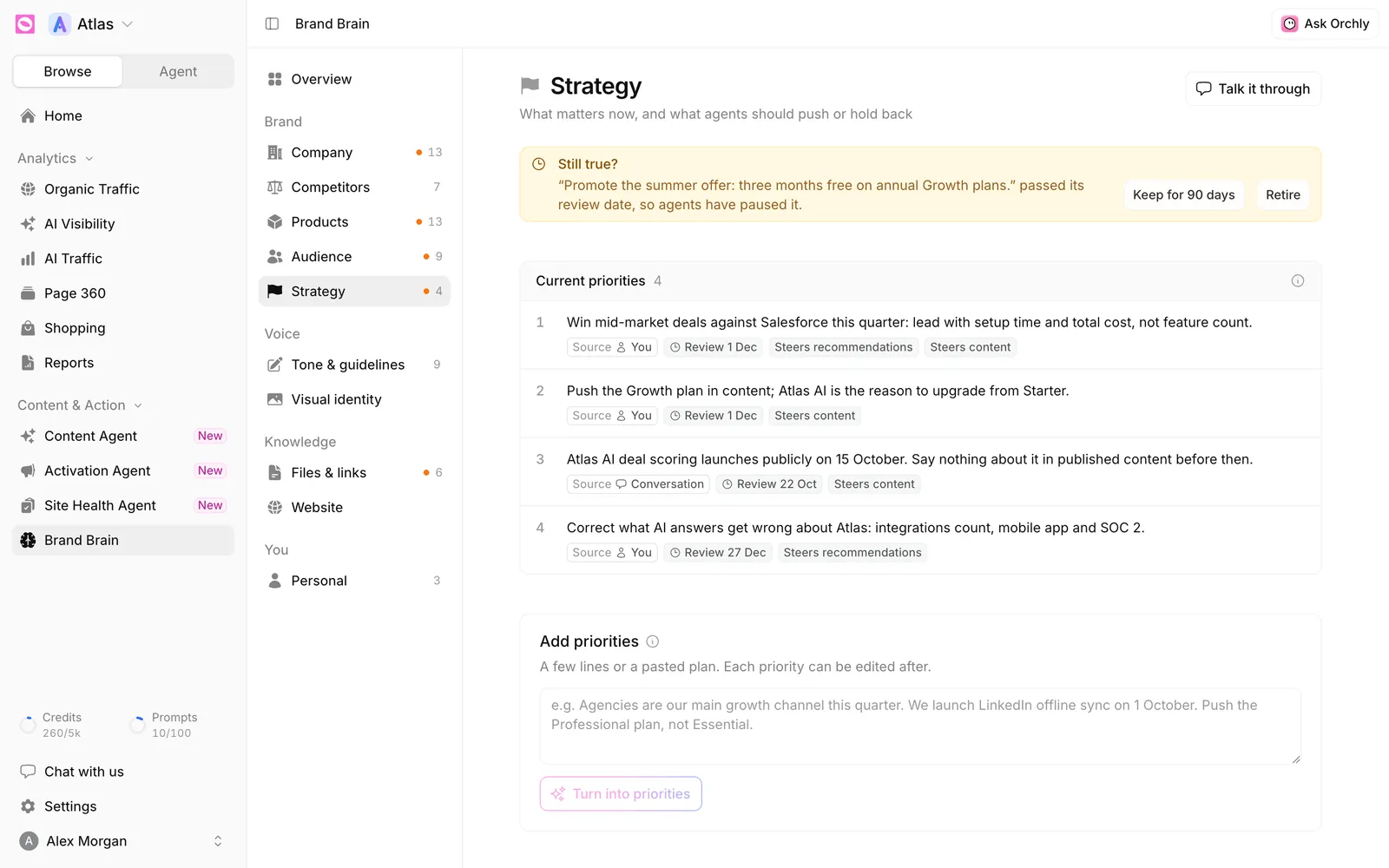
With no end date, a priority is reviewed in 90 days. Once the date passes, agents pause it and a Still true? alert offers Keep for 90 days or Retire. So an August promotion doesn’t turn up in October’s posts.
Keep it to two to five priorities, tied to outcomes like “Win comparison prompts against Salesforce: lead with setup time.” Not sure how to phrase them? Click Talk it through and Ask Orchly asks you.
Personal notes
Personal, under You, is the opposite of Strategy: “How you like to work. Only you and your agents see it.” Click Add note and write something like “Give me answers as short bullet lists.” Your teammates’ agents never see it.
Tell Ask Orchly something worth remembering, like “our Business plan is now $89 per user”, and it saves it to the right section with Undo. Things you say in chat skip the review queue because a person already said them.